> This is part 1 of 14 of the full documentation (pages 1–100 of 1370).
> The content is paginated: fetch every part to see all of it.
> Next part: https://docs.faronics.com/faronics-insight-docs/llms-full.txt/1
> Page index: https://docs.faronics.com/faronics-insight-docs/llms.txt
# About Faronics Insight
Faronics Insight is a classroom management platform that allows Teachers to engage with Students, monitor the activity on client systems, and assess the Student's understanding of course materials.
Key features of the product include:
* Communication with Students and demonstrate activities during a class.
* Allowing the Students to reach out and request assistance via chat or voice communication.
* Monitoring Student computer activities and restricting them to approved applications and sites.
* Limiting Student access to drives and printers.
* Remote access to Student computers.
* Ability to mute the audio on Student computers.
* Locking the keyboard and mouse on Student computers.
* Sharing the Teacher screen with the Students, or sharing a Student screen with the class.
* Transferring files to/from the Students.
* Performing assessments of Students using the built-in testing functions.
* Performing administrative actions such as Logon/Logoff/Restart/Power On/Shutdown.
# Getting Started
This user guide has two major sections. The section [Installation and Administration](/faronics-insight-docs/installation-and-administration/overview) is intended for individuals who are responsible for the installation and configuration of the Insight product on the client systems.
The section titled [Using Faronics Insight](/faronics-insight-docs/using-faronics-insight/the-insight-teacher-console) provides details on the operation of the Teacher console and the Student Application once they are installed. This section is intended for the person(s) who will be operating the software during the course of a classroom session.
# Insight Release Notes
## Current Versions
| Windows | Version |
| ------------------ | ----------- |
| Insight Teacher: | 12.40.x.696 |
| Insight Student: | 12.40.x.696 |
| Insight Connector: | 12.40.x.696 |
| Mac | Version |
| ------------------ | ----------- |
| Insight Teacher: | 12.40.x.696 |
| Insight Student: | 12.40.x.696 |
| Insight Connector: | 12.40.x.696 |
| | |
***
## Version 12.40.x.696 (Windows)/12.40.x.696 (Mac) (April 2, 2026)
### Enhancements
* **Multiple Teachers Support:** Allows multiple Teachers to manage the same Class simultaneously. When an Assistant Teacher joins an existing class, the primary Teacher will be asked for approval. A new 'View Assistant Teachers' option will appear under the Classrooms dropdown for the primary Teacher. Insight Connector is required for Multiple Teachers support.
* **File Transfer Restrictions:** Enables Teachers to define restricted file extensions when transferring files between Teachers and Students.
* **Automatic Class Exit:** To avoid Students getting stuck in a class when the Teacher forgets to dismiss the class, now the Insight Administrator can optionally set the Student to automatically exit the class after a defined period.
* **Student Approval for Class Invitations:** The Insight Administrator can now optionally allow the Students to accept or decline a Teacher’s invitation to join a class.
* **Command Line Arguments (Windows only):** When launching an Application from the Actions menu, the Teacher can now specify command line arguments for that application.
* **Privacy Settings for Mac Computers:** To ensure Teachers are able to properly view Student screens, hear the mic, and remote into the Mac, a new privacy settings option is now available under the Student’s Administrator settings.
* **New Mobile Settings:** Newly added settings, such as the options to automatically exit the class, require Student approval to join a class, and required privacy settings, are now available on the latest mobile applications for iOS, Android, and Chromebook.
**Note:** Insight Administrators can use the Insight Command Line to centrally update the above-mentioned Student enhancements, such as Automatic Class Exit, Student Approval, and Mac Privacy Settings.
### Fixes
#### Windows and Mac
53256 Resolved an issue where the Teacher gets a black screen when trying to remote connect to a Student computer, even though the thumbnails are displaying normal view. (Ticket# 899423, 89713)
53368 Resolved an issue where the Student sees a gray/white screen when the Teacher tries to perform screen sharing. (Ticket# 899585, 89176, 89212, 896702)
# Known Issues
#### Windows and Mac
45208 Sometimes Student computers are not reported to the Teacher console after starting the class or not dismissed after class is ended.
45271 When trying to load Classroom on the Teacher console, Student computers are taking a long time to load on the Teacher console.
45276 Student computers are displaying the message 'THERE IS NO CLASS ACTIVE AT THIS TIME' after the Teacher switches between Class ID to Classroom.
45309 In certain conditions, the 'Migrate' option remains available even after the Students have been updated to the latest version.
45338 USB Hard drives are not getting disabled on Student computers even when 'Disable Drives' (under Class Settings) is selected.
47179 After failing to remote to a Student computer, the next successful attempt results in the Actions menu becoming disabled.
47181 The 'Confirm Screen Share' dialog is displayed on the task bar (dock) even after confirming the action.
47384 When trying to remote log in to a Student computer, the 'Log On' button disappears when invalid credentials are entered.
47386 Sometimes, duplicate entries of a Student computer would show during remote session.
47387 In certain conditions during remote sessions with multiple Students, the Teacher is not able to switch from one Student to another.
47830 When multiple words are added in Banned Word Alert, alerts are only received for the first word only; alerts for the other words are not detected.
47965 When screensaver starts on the Student computer, the Student thumbnail displays black or is blank on the Teacher console.
48386 A black thumbnail for the Student computer is displayed on the Teacher console when the Student computer is minimized during Remote session.
48554 The 'Show Desktop (Windows)' menu item does not work if mouse and keyboard are disabled.
48668 If a file name being sent to the Teacher console contains a comma (,), garbage files get created in the default location.
48746 Microsoft Edge: Enabling/disabling the Web Filtering function takes more than 5 minutes to take effect for the Sidebar browsing.
48779 The 'Cancel' button for 'Save Student Card Layout' dialog is not responsive.
48805 'Webpage URL already exists' warning message does not appear when trying to save a URL that already exists.
48813 Chat settings are not applied after changing the Class Settings.
48877 In a particular condition, the Teacher's screen becomes unresponsive.
48890 When images are added to a test question, the 'Add Image' section shows an 'Undefined' placeholder and a 'Close (x)' button.
49567 A notification about the Student's file submission does not appear on the Teacher's workstation.
49623 The 'Raise Hand' notification repeatedly appears each time the Teacher console is launched.
53364 On mobile devices: Student actions (such as Raise Hand or Ask a Question) are not reflected on Primary and Assistant Teacher consoles.
53503 On Chromebook devices: Student screens are not displaying properly when the Teacher tries to ‘Share a Student Screen’.
53695 On iOS devices: The iOS Insight Student application occasionally crashes unexpectedly.
53702 On iOS devices: Students are unable to join the class after a fresh installation without restarting the app.
53720 On iOS devices: In certain situations, the Assistant Teacher name is not shown in the chat section.
53742 On iOS devices: The ‘Join Class’ message keeps appearing even after the Student has declined.
53764 On iOS devices: There are no messages displayed when the Teacher cancels an ongoing test.
53765 On iOS devices: The Privacy Policy link text is missing on the Faronics Insight Student application.
53823 On Chromebook devices: When the Teacher ends an ongoing test, the message 'Test Cancelled' is displayed instead of ‘Test Ended’.
***
#### Windows
39593 Lock screen limit gets disabled on Student computers after a hard reboot.
39597 Lock screen issues when Student computers lose connection with the Teacher computer.
39627 Keyboard and mouse lock issues when Student computers lose connection with the Teacher computer.
39632 When Students Raise Hand/Lower Hand while the Teacher console is offline, the status does not get updated on the Teacher console when the Teacher goes online.
39635 On Windows 8.1: When performing Lock Screen limit on Student computers and the computer has restarted, the Lock screen does not get displayed.
39645 'Mute Speaker' restriction does not get removed from Student computers even after they lose connection with the Teacher console.
39662 In certain scenarios, Teacher is unable to perform actions from the Teacher console when trying to remote to Student computers.
39719 When selecting to Share Student screen, the Teacher screen gets displayed to all Students instead.
39775 'Disable Drives' action fails on computers that have open documents on the removable drives when it is being disabled; computers are not rebooted and drives are not disabled.
39854 Student thumbnails do not display the correct icon/status after the Teacher applies limits to the Student computers.
39968 Incorrect keystrokes getting displayed.
40137 In particular condition, black screen gets displayed on Student computers running Windows 8.1.
40512 In a particular condition, when sending tests to logged off or offline Student computers, test status is displayed as 'Test in Progress' on Teacher console, but is not started on the Student computer.
40569 Incorrect error message is displayed on the Teacher console when transferring files to folders that do not have write permission on Student computers.
40571 Incorrect error message is displayed on the Teacher console when transferring files to Student computers and there is not enough free space on the folder location.
40626 On Windows 11: Sometimes mute/unmute status does not get updated on Student console.
40670 Incorrect error message is displayed when Teacher console goes offline while in the process of getting file from Student computers.
40679 On Windows 8.1: Sometimes, Insight Student icon does not get displayed in the System Tray on Student computers after installing and restarting the computers.
40732 In particular condition, keyboard and mouse get unlocked on Student computer even if keyboard/mouse is locked, or lock screen limit is active.
43822 In certain cases, the Student computer is out of the class but is displayed online in the Teacher console.
43885 When performing Remote session on offline and online Student computers, the window for offline Students does not get minimized after clicking the OK/Cancel button.
44122 For Students on Windows 8.1 systems: Keystroke monitoring functionality is not working.
44135 For Students on Windows 8.1 systems: Banned words are not showing on the Teacher console.
46072 When performing remote action on multiple Student computers, notification regarding accessing Student computers is displayed only on the first Student.
46073 On Windows 8.1 (64-bit): Notification when the Teacher accesses Student computer is not displayed on the Student computer.
***
#### Mac
40202 When multiple users are logged in, Actions or Limit functions performed by the Teacher are not getting applied to the current user.
40203 Unable to perform Logoff on Student computers when multiple users are logged in.
40204 Unable to perform Restart/Shutdown on Student computers when multiple users are logged in.
40537 Unable to transfer or play files on Student computers if there are no Class Settings selected or defined for the current class session.
40548 Collected files from Student computers (when connected through Insight Connector) are prefixed with a backslash ('\\') character.
40571 Incorrect error message is displayed on the Teacher console when transferring files to Student computers and there is not enough free space on the folder location.
40582 Built-in apps (except Safari and third-party apps) are not launching on Student computers when the Teacher performs 'Launch Application’ action.
40653 Banned words do not get displayed on the Teacher console if the banned word was corrected while being typed.
40655 'Close All Apps/End task' actions are not properly implemented on apps that have open documents.
40665 Transferring files from the Teacher computer to Student computers with multiple users results in the file not getting saved on the designated folder or other users having Read-Only access to the files.
40687 Sometimes, Insight Student does not start after switching users.
40722 When collecting file from Student computers running Windows OS, the file is not saved in the designated folder location on the Teacher computer.
40738 Web Filtering restriction on Student computers does not work on Chrome browsers when the 'Enable Web History’ option is not selected during Insight Student installation.
41919 Upgrade Insight Student action is not working while non-admin user is logged on to Student computer.
41999 Live Test Results are displayed twice on Student computers.
43147 Student cards are displayed overlapping each other when creating and loading new class from existing class (with layout saved).
43160 If Class is set to Autolaunch, but Teacher console is not launched, Student notifications (Chat, Raised Hand, Question) sent during this time do not appear on the Teacher console after the console is launched.
43224 Grayed out Student cards are still displayed on the Teacher console after uninstalling all Student computers from the Teacher console.
43264 On a Chromebook device, the screen flickers after Students try to answer a 'Fill in the blanks' question.
43322 Complete OS name should be displayed under OS column on 'Applications Running on Student Computer' dialog.
43338 Insight Teacher not able to remote connect to Student computer caused by insufficient Accessibility and Screen Recording permissions for FIStudentUI.app. (Case No. YXT-428-14412)
43776 Mac installers wording 'Install', 'Installer', 'Installation' appear in places even for the uninstallation process.
43857 When disabling Student keyboard and mouse during Remote, the Teacher keyboard and mouse are disabled as well.
46033 When changing settings using command line, the changes do not take effect until the Student/Teacher logs off then logs on, or restarts Insight Agent or the Console.
46061 On Mac Connector computer: Teacher Activity log file is not getting created in user's protected folders (such as Desktop, Documents).
47329 Connector on MacOS 13.6: When Insight Connector is installed and the Student computer is restarted, the Remote Control and Share Screen functions are not working.
48559 The 'Allow Students to Close the Insight window' and 'Allow Students to Minimize the Insight window' options do not work on Mac Student computers.
# 2025
## Version 11.41.x.421 (Windows)/11.41.x.421 (Mac) (February 5, 2025)
### **Enhancements**
* **Security Enhancements:** This update includes various behind-the-scenes security improvements to ensure a safer experience for users.
### Fixes
#### Windows and Mac
49021 Resolved an issue where the /setlk command was being ignored when upgrading Insight (CN# 539462, 539590)
49734 Resolved an issue where files get corrupted when transferring between Teacher and Student computers. (CN# 546436, 545311, 543721, 539689, 542874)
***
## January 10, 2025
### Fixes
#### Windows and Mac
49732 Resolved an issue where the old version of Faronics Insight plugin for Google Chrome was no longer supported, resulting in failure to install or enable on some computers. (CN# 547941, 534821)
**Note:** New Faronics Insight plugin for Google Chrome is now available. If already installed, the plugin will be automatically updated.
# 2024
## Version 11.40.x.412 (Windows)/11.40.x.412 (Mac) (September 18, 2024)
### Enhancements
* **Security and Performance Enhancements:** This update includes various behind-the-scenes security and performance improvements to ensure a smoother and safer experience for users.
* **Enhanced Web Filtering:** Improved web filtering now allows teachers to block or permit websites related to the same domain, providing greater control over web access for students.
* **Improved File Sharing:** Teachers can now upload entire folders to students, making it easier to distribute materials efficiently.
* **Class Settings Import/Export:** Teachers can now easily import and export Class Settings, making it simple to transfer settings between classes or backup configurations.
* **Double-Click Remote Connect:** A new feature lets teachers quickly connect to any student by double-clicking on their thumbnail, streamlining the remote support process.
* **Random Screen Sharing:** Teachers can now share a random student’s screen with the class, enhancing interactive learning and engagement.
* **Adaptive Test Option:** Added the Adaptive Test option in the Manage Tests dialog, allowing teachers to implement adaptive testing based on student performance.
* **Manage Polls:** Teachers can now manage, import, and export polls within the Manage Polls dialog, providing more flexibility in conducting interactive sessions.
* **Manage Webpages:** Teachers can define a list of frequently used webpages and use them under the "Launch Webpage" option in the Actions dropdown. The list can also be exported and imported for easier setup across different classrooms.
* **Manage Applications:** Teachers can now create a list of applications to use with the "Launch Application" feature. This list can be exported and imported, streamlining management across multiple classrooms.
* **Active Focus Thumbnails:** Teachers can quickly select all thumbnails of students currently in Focus mode, allowing for targeted classroom monitoring and engagement.
* **Thumbnail Detailed View:** Operating system icons (Windows or Mac) have been added to the Thumbnail Detailed view, making it easier for teachers to identify which operating system each student is using.
* **New Language Support:** Insight now supports Dutch, expanding accessibility for more users globally.
***
## Version 11.30.x.347 (Windows)/11.30.x.347 (Mac) (June 25, 2024)
### Enhancements
[Overview video on what’s new in Insight v11.3](https://www.youtube.com/watch?v=26qwrkqXtWQ).
* **Record Classroom:** Teachers can now record the Student thumbnails in the active Teacher Console for later review, aiding in monitoring and assessment. Students are notified of screen recording and can hide the notification dialogue.
* **Screen Recording Location:** A new tab has been introduced in the Settings dialog to manage screen recording locations, allowing teachers to easily control where recordings are saved.
* **Instantaneous Files Submission:** Located under the Student Chat section, this new option allows students to send files to the teacher. The Send File dialog enables drag-and-drop or selection of multiple files, making it convenient for students to submit work promptly. Teachers are no longer limited to only use the Collect Files function.
* **File and Folder Naming:** Files sent to the teacher will be saved in a specific folder with a clear naming format that includes the computer name, login name, and date/time, ensuring that teachers can easily identify who sent the files and when.
* **Web Filtering Management:** The permitted and prohibited websites Settings dialog now allows importing and exporting website URLs.
* **Transfer File to Student:** This dialog now includes options to open files on student computers and override the default path for saving files, enhancing flexibility and efficiency.
* **Simultaneous File Transfer:** Files are now transferred to multiple students simultaneously, reducing delays.
* **Import Legacy Classroom:** The new Classroom menu option enables Insight v11 to easily import settings from Insight v9 or earlier classroom setups, saving time and effort.
***
## Version 11.26.x.312 (Windows)/11.26.x.312 (Mac) (April 23, 2024)
### Enhancements
* Improvements for when Teachers remote connect to Student computers and get a black screen in return.
### Fixes
#### Windows and Mac
46989 Resolved an issue where Students are able to close the Teacher Window when the Teacher is sharing the Teacher screen with them. (CN# 519162)
# 2023
## Version 11.25.x.305 (Windows)/11.25.x.305 (Mac) (November 22, 2023)
### Notes
* Insight 11.25 supports macOS Sonoma 14, which has been extensively tested without any known issues detected.
### Fixes
#### Windows and Mac
46468 Resolved an issue where Student computers were not connecting to class and not being displayed in the Teacher console.
***
## Version 11.24.x.298 (Windows)/11.24.x.298 (Mac) (September 18, 2023)
### Enhancements
* Student receives notification when the Teacher accesses Student computers.
* Support uploading Teacher logs on to Connector computer (both Windows and Mac) or through UNC path (Windows only).
* Option to install Teacher via the MSI installer.
### Fixes
#### Windows
46012 Resolved an issue where virtual machines running on VMWare did not display the installer properly when 3D Acceleration is not enabled in the settings for the virtual machine. (CN# 405175).
46043 Resolved an issue where the license was not being accepted when entering license key on the first prompt after installing Insight Teacher. (CN# 505127)
46057 Resolved an issue with being unable to install Insight Teacher on Hyper-V gen 2 systems.
***
## Version 11.23.x.289 (Windows)/11.23.x.289 (Mac) (May 17, 2023)
### Enhancements
Security enhancements for each Insight component (Teacher, Student, and Connector).
### Fixes
44725 Resolved an issue where after locking the keyboard and mouse, and then locking the screen, neither options could not be unlocked. (CN# 28222)
***
## Version 11.22.x.268 (Windows)/11.22.x.268 (Mac) (March 10, 2023)
### Enhancements
Security improvements for Insight Connector
# 2022
## Version 11.21.x.262 (Windows)/11.21.x.262 (Mac) (November 14, 2022)
### Fixes
#### Windows
43915 Resolved an issue where, during remote control session, the Teacher could not type characters with special accents on Student computers (for example, typing the character è on Notepad). (Case No. DDO-725-61069)
44019 Resolved an issue where, when keystroke monitoring function is enabled, Student computers were not able to type characters with special accents (for example è). (Case No. GVI-305-78577, XTS-291-42680)
44133 Resolved an issue where, after upgrading to the latest Insight version, the Teacher console was unable to load the existing Classroom lists. (Case No. QTO-657-85404)
***
## November 1, 2022
### Notes
* Insight 11.20 supports macOS Ventura 13, which has been extensively tested without any known issues detected.
***
## Version 11.20.x.255 (Windows)/11.20.x.255 (Mac) (October 1, 2022)
### Enhancements
* New command line option for performing a silent upgrade of Insight.
* Option to specify thumbnails sizes on the Teacher console when displaying Student cards.
* Classes now end automatically when the Teacher closes the console.
* Classrooms now displayed in a drop-down list for easier selection between sessions.
* Support for configuring Student names on the Teacher console.
* Ability to remote control multiple Student computers at the same time.
* Supports MSI installation over Active Directory or third-party software for easier large scale deployment.
* New status window for displaying results of a remote login attempt.
* Logon details are retained for Student computers so that they don’t have to re-enter them all the time
* Ability to see the last 10 messages on the Teacher console when trying to lock the Student screen.
* Option to automatically lock the Student keyboard and mouse when performing Share Screen, and automatically unlocking after the Share Screen is over.
* Ability to keep Teacher screen on top of other screens when performing Share Screen in Windowed mode.
* For Mac Student: Supports Firefox browser.
* Ability to install Connector on Mac computers.
### Fixes
42946 Resolved an issue where, when selecting a single Student, the Teacher had to add the Student to the selection and deselect other Students. (Case No. ROK-626-39490)
43178 Resolved an issue where the Student screen displayed the chat window, and did not return to the desktop after ending the Share Screen session even when the option 'Minimize Student screen after session ends' was enabled. (Case No. AOS-932-25593)
43521 Resolved an issue where no Network cards were listed in Insight teacher and Students were unable to connect. (Case No. RHT-494-63829)
43531 Resolved an issue where Students are able to change Class IDs when trying to join a class even if the option 'Allow Student to Change Class ID' was disabled. (Case No. HCA-138-13265)
43589 Resolved an issue where Faronics Insight 11 did not work properly on Hyper-V Gen2 Virtual Machines. (Case No. XXV-263-90783)
43608 Resolved an issue where last layout set on Teacher console was lost when Insight Teacher was restarted.
43609 Resolved an issue where Wake-on-LAN was not working with Insight.
***
## Version 11.12.x.233 (Windows)/11.12.x.233 (Mac) (July 19, 2022)
### Enhancements
* Option to require Students to provide Student information when classes start.
* Online classroom layouts can now be set up, saved, and exported; set up online classroom layouts as you would a physical classroom to optimize teaching environment; save the layout so that future class sessions will start with the saved layout in place; export the classroom with layout to enable easier access when having to use a different computer, or having a substitute teacher take over the class.
* Command line support for activating license key during the installation process allows complete hands-off deployment of the Insight Teacher (for Windows only).
* Option to import and export tests provides more convenience for Teachers to share tests and for moving devices around.
* Option to remove files from Student computers once transfer to Teacher's computer has been completed.
* New feature to sort Students through Logon IDs.
* Ability to select ‘Logged In' and 'Logged Off' Student computers.
* Teachers with multiple monitors can choose a specific monitor to share with the Students as part of the lesson, and keep the other screen private for supplemental information.
* Option to expand/collapse all questions when creating or editing tests with multiple questions.
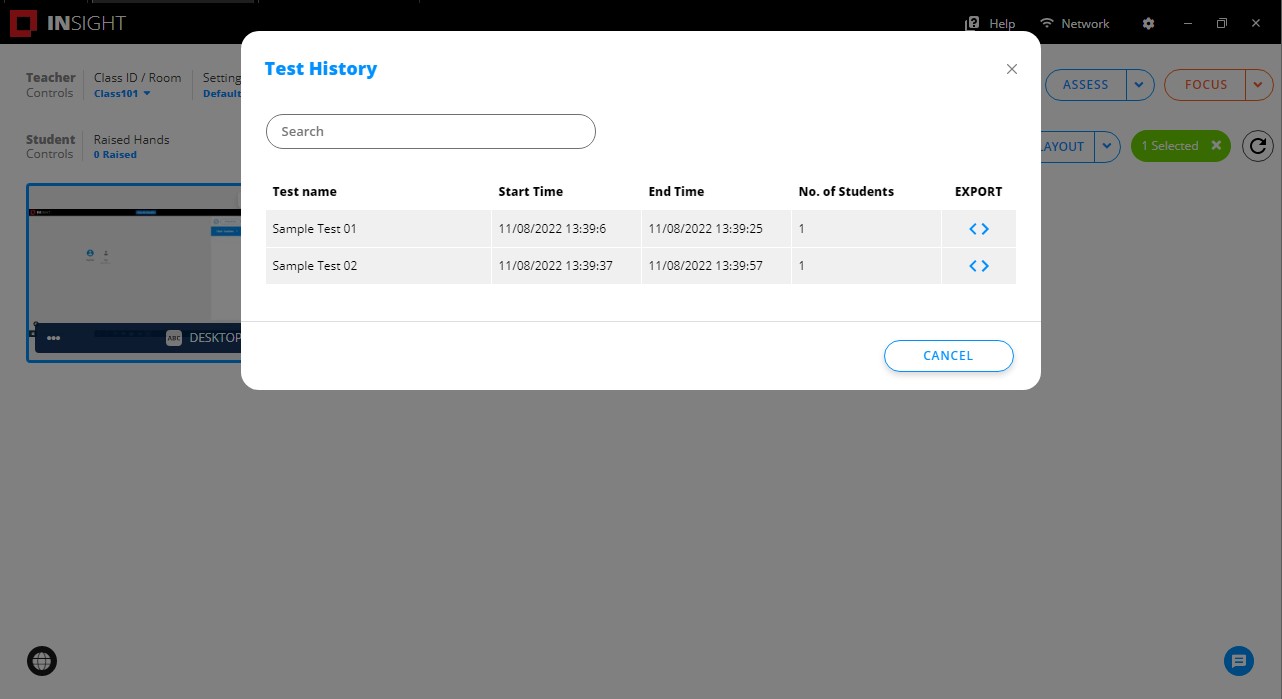
* New 'Test History' feature lists all the tests taken by the Students and the option to export the test.
* Option to minimize Student screen after the Teacher 'Share Screen' session has ended.
* 'Autolaunch Class' option, when enabled, automatically launches the Class ID on the Teacher console the next time the Teacher logs in after the computer restarts.
### Fixes
42073 Resolved an issue with some command line install options not working properly. (Case No. JRO-375-12293, DLI-307-12194).
42133 Resolved an issue with being unable to re-launch Insight Teacher if the application is closed from the system tray. (Case No. ZBZ-938-98315)
42195 Resolved an issue with being unable to install Insight 11 after uninstalling older versions (Case No. TLN-211-46517, ITN-623-97923, ROK-626-39490)
42226 Resolved an issue with being able to install Insight without a password using the command line, resulting in a Student device that could not be managed through the 'Administrator Settings'. (Case No. JRO-375-12293)
42555 Resolved an issue where Students are able to change the focus of the active window while the keyboard and mouse are locked during a 'Share Screen' session with the Teacher. (Case No. FZU-191-97111)
42791 Resolved an issue where Insight 11 could not be installed on some devices. (Case No. BKO-671-14558, TDW-129-38429)
43019 Resolved an issue where web activity using Firefox was not being captured and reflected in 'Web History'. (Case No. TDW-129-38429)
43071 Resolved an issue with 'Application and Keystroke History' not correctly capturing accented characters (for ex. ç, à, è). (Case No. YTX-759-74578)
***
## Version 11.11.x.205 (Windows)/11.11.x.0064 (Mac) (February 4, 2022)
### Enhancements
* Supports the option to install Microsoft Edge browser extension.
* Tooltips are now available, with the tooltip texts read aloud with help of Screen Reader technology to support Teacher and Student interaction during the remote process for the visually-impaired.
### Fixes
Links to the Japanese and Chinese languages have been fixed and now points to the correct language when selected.
42073 Resolved an issue where some command line installations options did not work. (Case No. JRO-375-12293)
# 2021
## Version 11.11.x.199 (Windows)/11.11.x.0060 (Mac) (December 29, 2021)
### Fixes
#### Mac
40315 Resolved an issue where the Teacher console login window did not show properly when restarting Insight using the 'Restart' option through the Teacher menu icon.
40593 Resolved an issue where Student computer status did not get refreshed/updated in real-time on the Teacher console after students have logged out and then logged in on the Student computer.
40741 Resolved an issue where the browser extension profile was not getting installed on Student computers running macOS Catalina and below OS during installation.
40795 Resolved an issue with Web Limit and Web History actions not working properly for Safari on computers running macOS High Sierra (10.13.6).
40802 Resolved an issue with the final steps for the student installation not displaying for non-English system.
# Overview
This section of the documentation provides details on the installation, configuration, and administration of the Insight product.
# Quick Install Guide
## Supported Environments
{% hint style="info" %}
Insight Teacher, Student, and Connector each have specific OS requirements:
**Teacher** – Windows or Mac
**Student** – Windows, Mac, iOS, Android, Chromebook
**Connector** – Windows or Mac
{% endhint %}
{% tabs %}
{% tab title="Insight Teacher" %}
**Supported Devices**:
* Computers
* Laptops
**Supported Operating Systems:**
* 64-bit Windows 8.1 or higher
* Windows Server 2019 or higher
* macOS 10.13 or higher
{% endtab %}
{% tab title="Insight Student" %}
**Supported Devices**:
* Computers
* Laptops
* Mobile Devices
**Supported Operating Systems:**
* 64-bit Windows 8.1 or higher
* macOS 10.13 or higher
* Browsers: Chrome, Firefox (Windows only), Safari (limited functionality), Microsoft Edge Chromium
* Mobile Devices: iOS 15 or higher, Android 7 or higher, Chromebook Chrome OS 49 or higher
{% endtab %}
{% tab title="Connector" %}
{% hint style="info" %}
Insight Connector must be installed on a computer in the network that is accessible by all Teacher and Student computers (located in the same network), and acts as the server, or an intermediary, between Students and Teachers**.**
It is recommended that Insight Connector be installed on a computer that is always online.
{% endhint %}
**Supported Operating Systems:**
* 64-bit Windows 8.1 or higher
* macOS 10.13 or higher
{% endtab %}
{% endtabs %}
## Installing Insight Teacher
{% hint style="info" %}
Requires administrative credentials on the OS that the software is being installed on.
{% endhint %}
{% hint style="info" %}
If you have antivirus software installed, consider whitelisting `C:\Program Files\Faronics\Insight Teacher\STAHelper.exe` to prevent Faronics Insight from being flagged and quarantined.
{% endhint %}
{% tabs %}
{% tab title="Windows" %}
1. Right-click the *InsightInstallerTeacher.exe* file and select the *Run As Administrator* option.
2. If the UAC prompt is displayed, click *Yes*.
3. Click *Next*.
4. Review the terms of the license agreement. Check the box to accept then click *Next*.
5. If your IT Staff has provided a *Class ID*, enter it here; otherwise, see the documentation [here](#class-id) and select an appropriate Class ID. Click *Next*.

6. If you have been provided an Access Token, enter it here. If you are responsible for determining if this feature is to be used, refer [here](/faronics-insight-docs/installation-and-administration/installation/installation-options/private-mode) to select an appropriate Access Token. Click *Next*.

It is recommended that Private Mode for Insight be enabled to prevent unauthorized installations of the Teacher console from accessing Student computers.
7. Enter an Admin Password and confirm it in the box below. To enable the Teacher password feature, check the box and enter the password, confirming it in the box below it. Once set click *Next*.

8. If you have been provided with an IP Address, Hostname, or FQDN for your Insight Connector, enter it here. Click *Install Teacher Console* to complete the installation process.

9. A reboot is required to complete the install process. It's recommended to allow the reboot to occur before using the Teacher console. \

Once rebooted and logged on to the Teacher's computer, access the Insight console via the system tray icon.
{% endtab %}
{% tab title="macOS" %}
1. Double-click the *InsightTeacher.pkg* file.
2. You will be prompted to run a compatibility check. Click *Allow*.
3. Review the terms of the license agreement. Click *Continue* to accept, then click *Agree*.
4. If your IT Staff has provided a Class ID, enter it here. If you are responsible for assigning your own Class ID, review the documentation [here](#class-id) and select an appropriate Class ID. Click *Continue*.\

5. If you have been provided an Access Token, enter it here. If you are responsible for determining if this feature is to be used, refer [here](/faronics-insight-docs/installation-and-administration/installation/installation-options/private-mode) to select an appropriate Access Token. Click *Continue*.\

It is recommended that Private Mode for Insight be enabled to prevent unauthorized installations of the Teacher console from accessing Student computers.
6. Enter an Admin Password and confirm it in the box below to secure the configuration options of the Teacher console. Click *Continue*.\

7. Enter a Teacher Password and confirm it to secure access to the Insight Teacher console. Click *Continue*.\

8. If you have been provided with an IP Address, Hostname, or FQDN for your Insight Connector, enter it here. Click *Continue*. \

9. The required disk space for the install is displayed. Click *Install*. Enter the administrator password when prompted.
10. After the installation is completed, log out and log back in to start Insight Teacher.
{% hint style="info" %}
* **Starting from macOS Ventura:**\
After the installation is complete, background items crucial for Insight to perform tasks will be added and enabled under *System Settings > General > Login Items*. Disabling these items will prevent Insight from working.
* **Starting from macOS Sequoia:**\
After the installation is complete, you will be prompted to allow Insight access to the local network the first time you log in. Allowing access ensures Insight will work properly.
{% endhint %}
{% endtab %}
{% endtabs %}
## Installing Insight Student
{% hint style="info" %}
Requires administrative credentials on the OS that the software is being installed on.
{% endhint %}
{% hint style="info" %}
If you have antivirus software installed, consider whitelisting `C:\Program Files\Faronics\Insight Student\STAHelper.exe` to prevent Faronics Insight from being flagged and quarantined.
{% endhint %}
{% tabs %}
{% tab title="Windows" %}
1. Right-click the *InsightInstallerStudent.exe* file and select the *Run As Administrator* option.
2. If the UAC prompt is displayed, click *Yes*.
3. Click *Next*. \

4. Review the terms of the license agreement. Check the box to accept then click *Next*.

5. If you have been provided an Access Token, enter it here. If you are responsible for determining if this feature is to be used, refer [here](/faronics-insight-docs/installation-and-administration/installation/installation-options/private-mode) to select an appropriate Access Token Click *Next*.\
\
It is recommended that Private Mode for Insight be enabled to prevent unauthorized installations of the Teacher Console from accessing Student computers.
6. Enter an Admin Password and confirm it in the box below to secure the configuration of the Insight Student. Once set, click *Next*. \
\
The Admin Password allows access to the Administrator Settings found in the Top Menu Bar in the Student Console.
7. If you have been provided with an IP Address, Hostname, or FQDN for your Insight Connector, enter it here and check the box next to *Use Insight Connector*. Click *Next*. \

8. Next, the option to enter the default Class ID as well as several other options are shown. If your IT Staff has provided a Class ID for you, enter this here. If you are responsible for assigning your own Class ID, see [here](#class-id) for further info and select an appropriate Class ID. Click *Next*.

9. The options to set Student permissions are shown. Set the permissions then click *Next*. 
10. The option to enable Wi-Fi restrictions is shown. To enable this feature, enter the list of authorized SSIDs. Click *Install*. \

11. Click *Yes* to restart your computer to complete the installation process. \

Once rebooted, the Student computer will be visible in the Insight Teacher Console.
{% endtab %}
{% tab title="macOS" %}
1. Double-click the *InsightStudent.pkg* file.
2. You will be prompted to run a compatibility check. Click *Allow*.
3. Review the terms of the license agreement. Click *Continue* to accept, then click *Agree*.
4. If you have been provided an Access Token, enter it here. If you are responsible for determining if this feature is to be used, refer [here](/faronics-insight-docs/installation-and-administration/installation/installation-options/private-mode) to select an appropriate Access Token. Click *Continue*.\

It is recommended that Private Mode for Insight be enabled to prevent unauthorized installations of the Teacher console from accessing Student computers.
5. Enter an Admin Password and confirm it in the box below to secure the configuration options of the Insight Student. Click *Continue*.\

The Admin Password allows access to the Administrator Settings found in the Top Menu Bar in the Student Console.
6. If you have been provided with an IP Address, Hostname, or FQDN for your Insight Connector, enter it here. Click *Continue*.\

7. If your IT Staff has provided a Class ID, enter it here, and configure other options. If you are responsible for assigning your own Class ID, review the documentation [here](#class-id) and select an appropriate Class ID. Once the options have been configured, click *Continue*.\
\
\
You can enable the extensions after the installation is finished.
* For Safari: To enable *Faronics Insight Safari App Extension*, launch Insight Student and then open Safari. From the Extensions preferences, select to enable the extension. Enabling the extension in Safari is a one-time action, however, it must be enabled for each user.
* For Chrome and Firefox: To enable *Faronics Insight Browser Extension*, depending on the operating system you are using, you will either be automatically prompted to install the extension or get a notification to do so manually through *System Preferences > Profiles*.
If Firefox extension has been enabled, you will need to manually remove this extension after uninstalling Insight Student.
8. The options to set Student permissions are shown. Set the permissions then click *Continue*. 
9. If desired, enable Wi-Fi Restrictions and enter the list of authorized SSIDs. Click *Continue*.\

10. The required disk space for the install is displayed. Click *Install*. Enter the administrator password when prompted.\

11. Click *Log Out*.
{% hint style="info" %}
* **Starting from macOS Ventura:**\
After the installation is complete, background items crucial for Insight to perform tasks will be added and enabled under *System Settings > General > Login Items*. Disabling these items will prevent Insight from working.
* **Starting from macOS Sequoia:**\
After the installation is complete, you will be prompted to allow Insight access to the local network the first time you log in. Allowing access ensures Insight will work properly.
{% endhint %}
Once rebooted, the Student computer will be visible in the Insight Teacher Console.
Perform the following additional steps to complete the installation of Insight Student:
1. Log in as the intended user for Insight Student.
2. Depending on your operating systems:
* On macOS Monterey and earlier systems: Click *Open System Preferences* button and enable *FIStudentUI.app* (Under *Privacy*) on the right to allow Accessibility and Screen Recording.
* On macOS Ventura: Click *Open System Settings > Privacy & Security > Accessibility*.
* On macOS Sequoia and Tahoe:
* Click *System Settings > Privacy & Security > Accessibility.*
* Click *System Settings > Privacy & Security > Local Network.*
* Click *System Settings > Privacy & Security > Microphone.*
* Click *System Settings > Privacy & Security > Screen & System Audio Recording.*
{% endtab %}
{% tab title="iOS" %}
{% hint style="info" %}
The *Insight Student iOS Application* can be found here on the *App Store.*
{% endhint %}
This application can be deployed to the device by having users download and install it directly from the app store or use an MDM solution to deploy the software.
{% endtab %}
{% tab title="Android" %}
{% hint style="info" %}
The *Insight Student Android Application* can be found on the *Google Play Store*.
{% endhint %}
This application can be deployed to the device by having users download and install it directly from the Google Play Store or use an MDM solution to deploy the software.
{% endtab %}
{% tab title="Chromebook" %}
{% hint style="danger" %}
To support devices running Chrome OS, the Android application will need to be installed on the Chrome OS Device.\
\
Google's guide to installing Android apps on a Chrome OS Device:
While installation of Android Applications is well supported on most Chrome OS devices this functionality may be blocked by Policy, or not supported on a specific device type. Google maintains a list of Chrome OS that support the installation of Android Applications here:
{% endhint %}
{% hint style="info" %}
The *Insight Student Android Application* can be found on the *Google Play Store*.
{% endhint %}
{% endtab %}
{% endtabs %}
## Class ID
During the installation of Insight Teacher and Insight Student, you will be prompted to assign a Class ID to the device.

The Class ID is used as a way to organize computers into manageable groups. Depending on how you will be using Insight, you may want to either:
1. Use the Class ID to separate each group of Student devices into groups that Teachers will then take control over and manage.\
or
2. Install all the Students using a generic Class ID that acts as a waiting room for Students who are not in a class. Teachers then bring Students into their own Class ID using the Classroom feature to gather and dismiss Students throughout the day.
{% hint style="info" %}
Regardless of what you decide, each Student and Teacher device will have a default Class ID assigned to it.
{% endhint %}
A Class ID can consist of a string of alphanumeric characters, you can use room numbers, names of the Teacher, or the name of the class being instructed.
The Class ID is normally set during the installation process but can be changed on the Student device by accessing the Administrator Settings found in the [Top Menu Bar](/faronics-insight-docs/using-faronics-insight/the-insight-student-application/top-menu-bar) in Insight Student.
# System Requirements
Topics found in this section:
* [Display Settings](/faronics-insight-docs/installation-and-administration/system-requirements/display-settings)
* [Supported Environments](/faronics-insight-docs/installation-and-administration/system-requirements/supported-environments)
* [Bandwidth Requirements](/faronics-insight-docs/installation-and-administration/system-requirements/bandwidth-requirements)
* [Wireless Networks and Insight](/faronics-insight-docs/installation-and-administration/system-requirements/wireless-networks-and-insight)
* [Firewall Settings and Insight](/faronics-insight-docs/installation-and-administration/system-requirements/firewall-settings-and-insight)
* [Faronics Insight and Use with Proxy Servers](/faronics-insight-docs/installation-and-administration/system-requirements/faronics-insight-and-use-with-proxy-servers)
# Display Settings
Faronics Insight requires a display resolution of at least 1366 x 768 (WXGA) or higher.
{% hint style="info" %}
While Faronics Insight does support screen scaling settings, scaling settings above 100% can have similar results as running the screen at a lower resolution and may result in UI elements being cut off depending on the selected options. If using a scaling setting above 100%, a higher resolution may be required to display all screen elements in Insight.
{% endhint %}
# Supported Environments
Faronics Insight is compatible with Windows, Mac, Chromebook, iOS, and Android operating systems and devices. The Teacher can be on Windows or Mac and can manage Students across all the supported operating systems.
### **Teacher Console Requirements**
The Teacher console enables Teachers to see what the Students are doing by providing a real-time view of each Student's screen at a single glance as well as the tools necessary for Teachers to manage their classroom and Students.
The Insight Teacher console software must be installed on each instructor device. Supported device operating systems include:
* 64-bit Windows 8.1, 10, 11
* macOS 10.13 or higher (on Apple Silicon and Intel architectures)
### **Student Device Requirements**
Student devices are devices (computers, laptops, mobile devices) running on supported operating systems installed with the Insight Student Agent, enabling Teachers to effectively interact with Students, and create a controlled/safe digital environment to promote Student engagement.
The Insight Student Agent must be installed on each Student device. Supported device operating systems and browsers include:
* 64-bit Windows 8.1, 10, 11
* macOS 10.13 or higher (on Apple Silicon and Intel architectures)
* Browsers: Chrome, Firefox (Windows only), Safari (limited functionality), Microsoft Edge Chromium
* Mobile devices: iOS 15 or higher, Android 7 or higher, Chromebook Chrome OS 49 or higher
### Insight Connector Requirements
Insight Connector acts as the agent that allows Teacher and Student computers on different VLANs or subnets to be able to communicate.
Insight Connector must be installed on a computer in the network that is accessible by all Teacher and Student computers (located in the same network), and acts as the server, or an intermediary, between Students and Teachers**.**
It is recommended that Insight Connector be installed on a computer that is always online.
Supported device operating systems include:
* 64-bit Windows 8.1, 10, 11
* macOS 10.13 or higher (on Apple Silicon and Intel architectures)
{% hint style="info" %}
Each component of Insight must be installed on a separate computer. A computer cannot have more than one Insight component installed in its system.
{% endhint %}
# Bandwidth Requirements
Insight has been designed with efficient use of network bandwidth in mind, and as such, much of the traffic that it generates will be dependent on the activities being taken by the Students and the Teachers.
In general, when idle the Teacher and Student machines will consume approximately 300 Kbps of traffic inbound and outbound to the Insight Connector or Teacher console per machine.
When viewing a specific Student’s screen, the Teacher and the Student will be exchanging more traffic up to approximately 1.5 to 2 Mbps of traffic inbound and outbound per machine to the Insight Connector or Teacher console.
When broadcasting a Teacher’s screen to multiple Student computers, the traffic to the Student computers can increase significantly. For example, a Teacher console broadcasting a full-screen video at WXGA resolution (1366 × 768) to a classroom of 24 Students was observed generating between 10 Mbps to 50 Mbps of traffic depending on the specific nature of the video being shown.
# Wireless Networks and Insight
While Insight has been designed to work well in environments where the Teachers and Students are going to be connected via wireless networks, there are some concerns that may need to be addressed to ensure that Teachers and Students both have a good user experience when using the product in this type of environment.
## Type of Wireless Environment
While most currently available wireless devices will provide adequate support for browsing and media consumption, enterprise-grade wireless networks will generally provide more reliable performance when working with larger deployments and will provide greater ability for administrators to tune the network to avoid problems from interference in the area.
While Faronics recommends the use of enterprise-grade wireless equipment, we do not recommend specific vendors or access points.
## Wireless Standards and Transmission Rates
Given the performance capabilities of various wireless standards, Faronics recommends that customers use wireless hardware capable of at least 802.11n (Wi-Fi 4) transmission rates. Better performance will be found when using access points capable of 802.11ac, or 802.11ax transmission rates (Wi-Fi 5 and Wi-Fi 6 respectively).
Faronics does not recommend using wireless networks that predate the 802.11n standard.
## AP Isolation/Client Isolation
In some cases, wireless networks may be configured to isolate individual clients as if they are connected to their own wireless network. In these cases, the Student client may not be able to detect an active Teacher console and may require the use of an Insight Connector to allow them to communicate with the Teacher console.
# Firewall Settings and Insight
Faronics Insight 11 uses the WebSocket protocol on port 8888/8889/8890 to communicate between the Teacher and Student machines. All traffic is encrypted to ensure the security of the data sent between the Student and the Teacher.
When directly controlling a Student computer, a connection between the Teacher and Student is made on a randomly selected port between 10000 and 20000.
The Insight installers will create appropriate firewall rules in the Windows Defender Firewall built into Windows to allow the application to function properly. Rules may need to be configured in third-party firewalls to allow for the clients to properly report and be controlled by the Insight Teacher.
# Faronics Insight and Use with Proxy Servers
## Overview
Customers running proxy servers may experience difficulty in using Faronics Insight in their environment. These issues may present as a number of different behaviors, including, but not limited to:
* Problems with the Insight Student connecting to the Insight Connector or Insight Teacher.
* Problems with the Student thumbnails not properly updating and showing a blank screen.
* Problems with the Student devices showing a black screen while attempting remote control.
## Problem
Insight makes use of web-based protocols to transfer data between the various components installed in the customers' network. As this traffic is web-based, a proxy server (depending on configuration) may interfere in the communication between the installed components.
## Resolution
To resolve this issue, users will need to configure the client devices running the Insight software to bypass the proxy server when communicating with the Insight Teacher or Insight Connector (if configured). This can be done as per the instructions below:
1. Open the *Control Panel.*
2. Click on *Network and Internet*.
3. Click on *Internet Options.*
4. Click on the *Connections* tab in the *Internet Properties* window.
5. Click on *LAN Settings* at the bottom of the *Connections* tab.
6. Click on the *Advanced* button in the *Proxy Server* options.
7. In the Exceptions, enter either the IP address or Hostname for your Insight Connector or Insight Teacher Console.
8. Click *OK* to close the proxy settings, LAN Settings, and Internet Properties.
After making this change, the Student device should now be able to report to the Insight Teacher and communicate with it properly.
{% hint style="warning" %}
In situations where a proxy server is deployed, it is recommended that customers implement an Insight Connector with a fixed IP address so that the proxy settings do not have to be updated in the event that the IP address assigned to the Insight teacher is changed.
{% endhint %}
# Installation
Topics found in this section:
* [Installing on Windows](/faronics-insight-docs/installation-and-administration/installation/installing-on-windows)
* [Installing on macOS](/faronics-insight-docs/installation-and-administration/installation/installing-on-macos)
* [Installing on iOS Devices](/faronics-insight-docs/installation-and-administration/installation/installing-on-ios-devices)
* [Installing on Android Devices](/faronics-insight-docs/installation-and-administration/installation/installing-on-android-devices)
* [Installing on Chrome OS Devices](/faronics-insight-docs/installation-and-administration/installation/installing-on-chrome-os-devices)
* [Installation Options](/faronics-insight-docs/installation-and-administration/installation/installation-options)
* [Insight 11 Upgrade](/faronics-insight-docs/installation-and-administration/installation/insight-11-upgrade)
# Installing on Windows
This section of the documentation will provide directions on installing the Insight Student and Teacher application on systems running supported versions of Microsoft Windows.
# Installing the Insight Teacher
{% hint style="info" %}
If you have antivirus software installed, consider whitelisting `C:\Program Files\Faronics\Insight Teacher\STAHelper.exe` to prevent Faronics Insight from being flagged and quarantined.
{% endhint %}
The Insight Teacher console is the tool that provides Teachers with the ability to monitor and control activity on Student computers, as well as providing an ability to engage with Students to assist in meeting their learning objectives.
The Insight Teacher can be installed on Windows 8, 10, 11, Windows Server from version 2019 and higher, and on systems running macOS from 10.13 and above.
{% hint style="info" %}
Installation of the Insight Teacher application requires administrative credentials on the operating system that the software is being installed on.
{% endhint %}
1. To begin installing, locate the *InsightInstallerTeacher.exe* application in the copy of Faronics Insight you were provided, or downloaded. Right click the file and select the option to *Run As Administrator*.
2. A UAC prompt may be displayed. Click *Yes* to begin the installation process.
3. When the Insight installer loads, click *Next* to begin the installation process.

4. The next screen will display the license agreement for Faronics Insight. Review the terms of the license agreement and click *I accept the terms in the License Agreement* to accept the license agreement and then click *Next*.
5. Next, the option to enter the default Class ID is shown. If your IT staff have provided a Class ID for you, enter this here. If you are responsible for assigning your own Class ID, please review the documentation [here ](/faronics-insight-docs/using-faronics-insight/the-insight-teacher-console/class-id)and select an appropriate Class ID. Click *Next*.

6. The next screen shows the option to enable *Private Mode*. If you have been provided an Access Token enter it here. If you are responsible for determining if this feature is to be used, refer [here](/faronics-insight-docs/installation-and-administration/installation/installation-options/private-mode) to select an appropriate Token. Once appropriate settings have been made, click *Next*.

It is recommended that Private Mode for Insight be enabled to prevent unauthorized installations of the Teacher console from accessing Student computers.
7. The next screen allows for the configuration of the Admin Password and the Teacher Password to secure the configuration options of the Teacher console, and access to the console itself respectively. Once set, click *Next*.
\
8. The next screen provides the ability to configure the Insight Connector for the Teacher console. If you have been provided with an IP Address, Hostname, or FQDN for your Insight Connector enter it here. Click *Install Teacher Console*.

9. When complete, the Teacher console will ask to reboot the machine to complete the installation process. It is recommended to allow the reboot to occur before using the Teacher console.

Once rebooted, you will be able to access the Insight console through the system tray icon after logging on to the Teacher machine.
# Command Line Installation
\
The Insight Teacher application supports the use of command line options to configure the product during the installation process. These options can be used with a variety of deployment tools to push the Teacher Application to systems without requiring user intervention.
| Command Line Option | Description |
| -------------------------- | ---------------------------------------------------------------------------------------------------------------------------------------------------------------------------------------------------------------------------------------------------------------------------------------------------------------------------------------------------------------------------------------------------------------------- |
| `/classID ` | During installation, this will set the default Class ID to the value specified. The value can be any valid alphanumeric Class ID. |
| `/adminPwd ` | This option configures the Administrator Password on the client system using the value specified after the command line switch. |
| `/connectorServer ` |
This option configures the Insight Teacher to communicate with the Insight Connector located at the IP address, Hostname, or FQDN specified.
Example: /connectorServer insight
/connectorServer 192.168.1.10
/connectorServer insight.example.domain.com
|
| `/consolePwd ` | This option configures the Password to access the Insight Teacher console on the client system using the value specified after the command line switch. |
| `/sharedSecret ` |
This option configures Insight to make use of Private Mode using the value specified as the Access Token.
Example:
/sharedSecret Password123
|
| `/suppressreboot` | This option will suppress the reboot of the client system after the Insight Teacher is installed. Insight may not be fully enabled until the client machine is rebooted after the install process. |
| `/setlk` |
During installation, this option will set the license key for Insight through the command line. When set, Insight will skip the page for entering the license key and open to the Class ID/Classroom login page when launched.
License keys must be entered exactly as given, including the dashes.
The license key looks like this: XXXXXXXX-XXXXXXXX-XXXXXXXX-XXXXXXXX-XXXXXXXX
|
| `/upgrade` | This option silently upgrades the Insight Teacher application with existing settings. |
An example installation command line is shown below:
`InsightInstallerTeacher.exe /classID Class101 /adminPwd Password123 /consolePwd TeacherPassword123 /sharedSecret securecommunication`
An example installation command line is shown below when installing Insight Teacher using an MSI installer:
`MSIEXEC.exe /I "msi Path" /qn CMDLINE="/classId Class101 /adminPwd Password123 /consolePwd Password345 /setlk XXXXXXXX-XXXXXXXX-XXXXXXXX-XXXXXXXX-XXXXXXXX /connectorServer insight.example.domain.com /suppressreboot"`
# Command Line Utility
The Insight Command Line utility (inc.exe) is a program that allow users to execute specific tasks by typing commands, giving network administrators increased flexibility in managing Insight Teacher computers.
To execute command line instructions with administrative privileges, launch the Command Prompt as an Administrator.
After the command lines are executed (except for commands `/getConfig` and `/help`), the computer will restart automatically for the changes to take effect.
{% hint style="info" %}
Passwords or values containing a space must be enclosed in quotes.
For example: `/adminPwd "Mozambique 123"`
{% endhint %}
## Command Lines
| Command Line Option | Description |
| ------------------------------------------------------------------------------------------------------------------------------------------------------------------------------------------------------------------------------------------------------------------------------------------------------------------------------------------------------------------------------------- | ----------------------------------------------------------------------------------------------------------------------------------------------------------------------------------------------------------------------------------------------------------------------------------------------------------------------------------------------------------------------------------------------------------------------------------------------------------------------------------------------------------------------------------------------------------------------------------------------------------------------------------------------------------------------------------------------------- |
|
inc.exe /help
/help aliases:
/?
-?
/h
-h
/hlp
-hlp
-help
| Prints this help and usage information. |
|
inc.exe /password \ /getConfig
/password aliases:
-password
/pwd
-pwd
/getConfig aliases:
-getConfig
/gcfg
-gcfg
/gc
-gc
| Prints the internal Faronics Insight Teacher Configuration settings. |
|
inc.exe /password \ /classId \
/classId aliases:
-classId
/cid
-cid
|
This command sets the default class ID to the value specified. The value can be any valid alphanumeric Class ID.
Example:
inc.exe /password abcd /classId LiberalArts
inc.exe /password abcd -classId "Liberal Arts 101"
inc.exe /password abcd /cid Vt#YurB%b6TgRB$
inc.exe /password abcd -cid 20250101
|
|
inc.exe /password \ /adminPwd \
/adminPwd aliases:
-adminPwd
/adminPassword
-adminPassword
/apwd
-apwd
|
This option sets the Administrator Password on the client system using the value specified.
This option is typically used with a series of commands and suppresses the reboot of the client system after the Insight Teacher setting is changed. Note: Faronics Insight will not reflect the setting change until the computer is rebooted.
|
|
inc.exe /password \ /uninstall
/uninstall aliases:
-uninstall
/ui
-ui
| This option uninstalls Insight Teacher from the computer. |
|
inc.exe /password \ /consolePwd \
/consolePwd aliases:
-consolePwd
/cpwd
-cpwd
|
This option sets the password to access the Insight Teacher Console using the value specified.
|
An example installation command line is shown below:
`inc.exe /pwd password /lk="8Z0WWSB9-K598C3KN-5B40WDFY-721W2GAZ-SSMY5N4Q" /cs "10.0.3.89"`
# Installing the Insight Student
{% hint style="info" %}
If you have antivirus software installed, consider whitelisting `C:\Program Files\Faronics\Insight Student\STAHelper.exe` to prevent Faronics Insight from being flagged and quarantined.
{% endhint %}
The Insight Student is the component that allows a Student's system to report to the Insight Teacher console. It provides all the required components and provides the Student with a method to engage with the Teacher if assistance is required in class.
{% hint style="info" %}
Installation of the Insight Student application requires administrative credentials on the operating system that the software is being installed on.
{% endhint %}
1. To begin installing, locate the *InsightInstallerStudent.exe* application in the copy of Faronics Insight you were provided or downloaded. Right-click the file and select the option to *Run As Administrator*.
2. A UAC prompt may be displayed, click *Yes* to begin the installation process.
3. When the Insight installer loads, click *Next* to begin the installation process.

4. The next screen will display the license agreement for Faronics Insight. Review the terms of the license agreement and click *I accept the terms in the License Agreement* to accept the license agreement and then click *Next*.

5. The next screen shows the option to enable *Private Mode*. If you have been provided an Access Token, enter it here. If you are responsible for determining if this feature is to be used, refer [here](/faronics-insight-docs/installation-and-administration/installation/installation-options/private-mode) to select an appropriate Access Token. Once appropriate settings have been made, click *Next*.\

It is recommended that Private Mode for Insight be enabled to prevent unauthorized installations of the Teacher console from accessing Student computers.
6. The next screen allows for the configuration of the Admin Password to secure the configuration options of the Insight Student. Once set, click *Next*.\
\
The Admin Password allows access to the Administrator Settings found in the Top Menu Bar in the Student console.
7. The next screen provides the ability to configure the Insight Connector for the Teacher console. If you have been provided with an IP Address, Hostname, or FQDN for your Insight Connector, enter it here. Click *Next*.

8. Next, the option to enter the default Class ID as well as several other options are shown. If your IT Staff has provided a Class ID for you, enter this here. If you are responsible for assigning your own Class ID, please review the documentation [here](/faronics-insight-docs/installation-and-administration/installation/installation-options/class-id) and select an appropriate Class ID. Click *Next*.

9. The options to set Student permissions are shown. Set the permissions then click *Next*. 
10. Next, the option to enable Wi-Fi restrictions is shown. If desired, enable this feature and enter the list of authorized SSIDs. Click *Install.* 
11. Once the installation is complete, a confirmation will be displayed, click *Yes* to restart your computer.\

Once rebooted, the Student computer will be visible in the Insight Teacher console.
# Command Line Installation
The Insight Student Application supports the use of command line options to configure the product during the installation process. These options can be used with a variety of deployment tools to push the Student Application to systems without requiring user intervention.
| Command Line Option | Description |
| ------------------------------ | ---------------------------------------------------------------------------------------------------------------------------------------------------------------------------------------------------------------------------------------------------------------------------------------------------------------------------------------- |
| `/classID ` | During installation, this will set the default Class ID to the value specified. The value can be any valid alphanumeric Class ID. |
| `/requireStudentPermission` | Setting this option during the installation process will configure Insight to require the approval of the Student. |
| `/installbrowserextension` | Setting this option will install the browser extensions on the Student system. |
| `/enableWebHistory` | Setting this option will enable the ability of Insight to track web history on Student machines. |
| `/disableKeyLogging` | Setting this option will disable the ability of Insight to log keystrokes on the client system. |
| `/studentCanChangeClassId` | Setting this option will configure Insight to allow the Student to change the Class ID in Insight. |
| `/hideSysTrayIcon` | Setting this option will configure Insight to hide its Icon on the system tray. |
| `/restrictWiFi` | Setting this option will enable the ability for Insight to restrict what wireless networks the system can connect to. |
| `/authorizedWiFiSSIDs ` | Setting this option will specify the SSIDs for the wireless networks that the systems can connect to. SSIDs should be specified by entering each one separated by a comma. |
| `/sharedSecret ` |
This option configures Insight to make use of Private Mode using the value specified as the Access Token.
Example:
/sharedSecret Password123
|
| `/adminPwd ` | This option configures the Administrator Password on the client system using the value specified after the command line switch. |
| `/connectorServer ` |
This option configures the Insight Student to communicate with the Insight Connector located at the IP address, Hostname, or FQDN specified.
Example:
/connectorServer insight
/connectorServer 192.168.1.10
/connectorServer insight.example.domain.com
|
| `/suppressreboot` | This option will suppress the reboot of the client system after the Insight Student is installed. Insight may not be fully enabled until the client machine is rebooted after the install process. |
| `/upgrade` | This option will silently upgrade Insight Student with existing settings. |
An example installation command line is shown below when installing Insight Student using an executable (.exe) file:
`InsightInstallerStudent.exe /classid Class101 /adminPwd Password123 /sharedSecret superiorsiegeweapon /installbrowserextension /enableWebHistory /connectorServer insight.example.domain.com /suppressreboot`
An example installation command line is shown below when installing Insight Student using an MSI installer:
`MSIEXEC.exe /I "msi Path" /qn` `CMDLINE="/classId Class101 /requireStudentPermission /disableKeyLogging /studentCanChangeClassId /hideSysTrayIcon /adminPwd Password123 /installBrowserExtension /enableWebHistory"`
# Command Line Utility
The Insight Command Line utility (inc.exe) is a program that allow users to execute specific tasks by typing commands, giving network administrators increased flexibility in managing Insight Student computers.
To execute command line instructions with administrative privileges, launch the Command Prompt as an Administrator.
After the command lines are executed (except for commands `/getConfig` and `/help`), the computer will restart automatically for the changes to take effect.
{% hint style="info" %}
Passwords or values containing a space must be enclosed in quotes.
For example: `/adminPwd "Mozambique 123"`
{% endhint %}
## Command Lines
| Command Line Option | Description |
| ------------------------------------------------------------------------------------------------------------------------------------------------------------------------------------------------------------------------------------------------------------------------------------------------------------------------------------------------------------------------------------- | ----------------------------------------------------------------------------------------------------------------------------------------------------------------------------------------------------------------------------------------------------------------------------------------------------------------------------------------------------------------------------------------------------------------------------------------------------------- |
|
inc.exe /help
/help aliases:
/?
-?
/h
-h
/hlp
-hlp
-help
| Prints this help and usage information. |
|
inc.exe /password \ /getConfig
/password aliases:
-password
/pwd
-pwd
/getConfig aliases:
-getConfig
/gcfg
-gcfg
/gc
-gc
| Prints the internal Faronics Insight Student Configuration settings. |
|
inc.exe /password \ /classId \
/classId aliases:
-classId
/cid
-cid
|
This command sets the default class ID to the value specified. The value can be any valid alphanumeric Class ID.
Example:
inc.exe /password abcd /classId LiberalArts
inc.exe /password abcd -classId "Liberal Arts 101"
inc.exe /password abcd /cid Vt#YurB%b6TgRB$
inc.exe /password abcd -cid 20250101
|
|
inc.exe /password \ /adminPwd \
/adminPwd aliases:
-adminPwd
/adminPassword
-adminPassword
/apwd
-apwd
|
This option sets the Administrator Password on the client system using the value specified.
This option is typically used with a series of commands and suppresses the reboot of the client system after the Insight Student setting is changed. Note: Faronics Insight will not reflect the setting change until the computer is rebooted.
|
|
inc.exe /password \ /uninstall
/uninstall aliases:
-uninstall
/ui
-ui
| This option uninstalls Insight Student from the computer. |
|
inc.exe /password \ /showSysTrayIcon
/showSysTrayIcon aliases:
-showSysTrayIcon
/ssti
-ssti
| This option configures Insight Student to show its icon on the system tray. |
|
inc.exe /password \ /hideSysTrayIcon
/hideSysTrayIcon aliases:
-hideSysTrayIcon
/hsti
-hsti
| This option configures Insight Student to hide its icon on the system tray. |
|
inc.exe /password \ /studentCanChangeClassId
/studentCanChangeClassId aliases:
-studentCanChangeClassId
/sccid
-sccid
| This option configures Insight Student to allow the Student to change the Class ID in Insight. |
|
| This option configures Insight Student to prohibit the Student from changing the Class ID in Insight. |
|
inc.exe /password \ /enableKeyLogging
/enableKeyLogging aliases:
-enableKeyLogging
/kl
-kl
| This option enables Insight Student to monitor and log keystrokes on the Student computer. |
|
inc.exe /password \ /disableKeyLogging
/disableKeyLogging aliases:
-disableKeyLogging
/dkl
-dkl
| This option disables Insight Student from being able to monitor and log keystrokes. |
|
inc.exe /password \ /requireStudentPermission
/requireStudentPermission aliases:
-requireStudentPermission
/rsp
-rsp
| This option configures Insight Student to require the approval of the Student for screenshot, screen sharing, and remote function. |
|
inc.exe /password \ /dontrequireStudentPermission
/dontrequireStudentPermission aliases:
-dontrequireStudentPermission
/dnrsp
-dnrsp
| This option configures Insight Student to perform screenshot, screen sharing, and remote on the Student computer without requiring approval from the Student. |
| `inc.exe /password /authorizedWiFiSSIDs` |
Setting this option will specify the SSIDs for the wireless networks that the systems can connect to. SSIDs should be specified by entering each one separated by a comma.
| This option configures Insight Student to require the Student to give permission when the Teacher sends a request for the Student to join a class. |
|
inc.exe /password /disableClassJoinPermission
/disableClassJoinPermission aliases:
-disableClassJoinPermission
/dcjp
-dcjp
| This option configures Insight Student to allow the Student to join a class without being required to give permission. |
|
inc.exe /password /classAutoExit
/classAutoExit aliases:
-classAutoExit
/cae
-cae
| This option configures Insight Student to allow the Student to automatically exit the class after specified time. Valid values: 30, 45, 60, 75, 90 minutes. |
|
inc.exe /password /disableClassAutoExit
/disableClassAutoExit aliases:
-disableClassAutoExit
/dcae
-dcae
| This option configures Insight Student to prevent the Student from automatically exiting the class after the specified time. |
|
inc.exe /password /classExtension
/classExtension aliases:
-classExtension
/cext
-cext
| This option configures Insight Student to allow the Student to extend the class in 30-minute intervals. |
|
inc.exe /password /disableClassExtension
/disableClassExtension aliases:
-disableClassExtension
/dcext
-dcext
| This option configures Insight Student to prevent the Student from extending the class. |
An example installation command line is shown below:
`inc.exe /pwd password /cid Math101 /cs "10.0.3.89"`
# Insight Mass Deployment Through Faronics Deploy
### Overview
This document will detail the process for performing a mass deployment of Faronics Insight using the command line install options.
This document will use the Faronics Deploy product as a platform for pushing the Insight Student Application to the client computers, however, the general process can be adapted to any 3rd-party application that can push a command to a remote machine.
### Requirements
To perform a remote install of the Insight Student application on a client device you will need to have the following prerequisite components in place:
* A utility that can transfer files to and execute commands remotely on a client device. In this example, we will use Faronics Deploy.
* A location that is accessible to the client systems that can host the install package for remote deployment. In our example, we will be using an S3 Bucket hosted on Amazon Web Services (AWS), however, a publicly accessible network share or internally hosted web service will work.
* The command line options are required to configure the Insight product according to the requirements of your deployment.
### Hosting the Install Package
To start, the installation package for the Insight Student needs to be saved in a location where it is accessible to the client systems. Faronics Deploy supports the use of both public and private web servers to host the file, as well as SMB shares.
In our example, we will be hosting the file on an Amazon S3 bucket and using a URL that looks like this to access the file:
`https://.s3.amazonaws.com/InsightInstallerStudent.exe`
Once you have uploaded a copy of the Insight installer to your AWS bucket you will either need to set appropriate permissions to allow your computers to access the file securely from a specific location, or provide public access permissions to the file.
**Note:** Due to the nature of the Insight installer itself, no sensitive information is contained in the installer package, however, the command line options for the install process will potentially contain passwords and other information that should not be publicly accessible. As such, we do not recommend hosting the command line parameters in a publicly accessible location.
### Determining the Command Line Options
The next step in preparing for deployment is to determine the command line options required for the deployment of the Insight Student. A full list of command line options can be found in [Appendix A – Insight Student Command Line Install Reference](#id-4jhum9auoakl).
The command line options allow the configuration of common install parameters such as the default Class ID, Administrative and Teacher passwords, as well as the address of the Insight Connector.
For example, the command line below will perform an installation of the Insight Student on a client machine:
`InsightInstallerStudent.exe /classid Class101 /adminPwd Password123 /sharedSecret superiorsiegeweapon /installbrowserextension /enableWebHistory /connectorServer insight.example.domain.com /suppressreboot`
This command will install Insight with the following options:
* The Class ID will be configured to be *Class101.*
* The Administrator Password to protect the settings will be set to *Password123.*
* The Access Token for the Private Mode will be set to *superiorsiegeweapon.*
* The Browser extension will be installed on the client.
* The option to capture web history will be enabled.
* The Student will be configured to communicate with the Insight relay located at *insight.example.domain.com.*
* The Reboot at the end of the install process will be suppressed.
As the command line installation does require passwords and other sensitive information to be potentially visible to persons who can see the command being run, it is recommended that the command line options not be saved in a batch file or other script format that can be directly accessed by end users.
### Creating the Custom Application for Deployment
To create the custom application for deployment, log in to the Faronics Deploy console and navigate to the *Control Grid > Applications* view and click on *Custom App > Create Custom App.*

In the *Set up Custom App* dialog, enter a name for the custom in the *Package Name*. This can be any specific string that you like to identify the application, in our example, we will use Insight Student. Next, enter the URL or path to the installer package in the *Setup Installer* field. Finally provide the command line options that you decided on previously in the *Install Command Line* field.

Once the options are set, click *Next*.
Now you will see a list of systems available to install the software on. Pick one machine to perform the deployment on to allow Faronics Deploy to inventory the application after installation. Select a machine and click *Next*.

The screen will show the individual machine; click *Install* to begin the installation process. Then click *Install* a second time to confirm the installation on the client system. While the installation is in progress, you will see the status of the install process reflected on the screen.
Once completed, the version of the installed application and the name of the program as it was detected in the Programs and Features list will be shown. Verify this information is correct, and click *Next* to save the application to the Control Grid.

Once saved to the control grid, click the *Custom Apps* header in the grid to view the custom applications. To deploy the application, click on the appropriate grid square for the computer that you are installing to and then click the *Install* button at the top of the screen.

While installing, a status indicator will be shown and when complete, the version of the Insight Student application will be displayed in the control grid, and the client system will be displayed in the Teacher Console.

### Appendix A – Insight Student Command Line Install Reference
| Command | Description |
| ------------------------------ | ---------------------------------------------------------------------------------------------------------------------------------------------------------------------------------------------------------------------------------------------------------------------------------------------------------------------------------- |
| `/classID | During installation, this will set the default Class ID to the value specified. The value can be any valid alphanumeric Class ID. |
| `/requireStudentPermission` | Setting this option during the installation process will configure Insight to require the approval of the Student |
| `/installbrowserextension` | Setting this option will install the browser extensions on the Student system. |
| `/enableWebHistory` | Setting this option will enable the ability of Insight to track web history on Student machines. |
| `/disableKeyLogging` | Setting this option will disable the ability of Insight to log keystrokes on the client system. |
| `/studentCanChangeClassId` | Setting this option will configure Insight to allow the Student to change the Class ID in Insight. |
| `/hideSysTrayIcon` | Setting this option will configure Insight to hide its Icon on the system tray. |
| `/restrictWiFi` | Setting this option will enable the ability for Insight to restrict what wireless networks the system can connect to. |
| `/authorizedWiFiSSIDs ` | Setting this option will specify the SSIDs for the wireless networks that the systems can connect to. SSIDs should be specified by entering each one separated by a comma. |
| `/sharedSecret ` |
This option configures Insight to make use of Private Mode using the value specified as the Access Token.
Example:
/sharedSecret Password123
|
| `/adminPwd ` | This option configures the Administrator Password on the client system using the value specified after the command line switch. |
| `/connectorServer ` |
This option configures the Insight Student to communicate with the Insight Connector located at the IP address, Hostname, or FQDN specified.
Example:
/connectorServer insight
/connectorServer 192.168.1.10
/connectorServer insight.example.domain.com
|
| `/suppressreboot` | This option will suppress the reboot of the client system after the Insight Student is installed. Insight may not be fully enabled until the client machine is rebooted after the install process. |
# Uninstalling Insight
The Insight components can be removed from the system through the *Programs and Features* dialog in the Control Panel, or through *Settings > Apps > Apps & Features*.

Additionally, the Insight Student application can be removed by selecting the Student machines, clicking on the *Actions* menu, and selecting the option to *Uninstall Insight* from the actions menu.

# Installing on macOS
This section of the documentation will provide directions on installing the Insight Student and Teacher application on supported versions of Mac operating systems.
# Installing the Insight Teacher
The Insight Teacher console is the tool that provides Teachers with the ability to monitor and control activity on Student computers, as well as providing an ability to engage with Students to assist in meeting their learning objectives.
The Insight Teacher can be installed on Windows 8, 10, 11, Windows Server from version 2019 and higher, and on systems running macOS from 10.13 and above.
{% hint style="info" %}
Installation of the Insight Teacher application requires administrative credentials on the operating system that the software is being installed on.
{% endhint %}
1. To begin installing, locate the *InsightTeacher.pkg* application in the copy of Faronics Insight you were provided or downloaded. Double-click the installation file.
2. The application will launch and will display a window asking you to run a compatibility check on the client system. Click *Allow*.\

3. Once completed, the installer will show some details of the version of the software that you are installing, click *Continue*.\

4. The next screen will display the license agreement for Faronics Insight. Review the terms of the license agreement and click *Continue* to accept the license agreement and then click *Agree.*\

5. Next, the option to enter the default Class ID is shown. If your IT staff has provided a Class ID for you enter this here. If you are responsible for assigning your own Class ID, please review the documentation [here ](/faronics-insight-docs/using-faronics-insight/the-insight-teacher-console/class-id)and select an appropriate Class ID. Click *Continue*.
6. The next screen shows the option to enable *Private Mode*. If you have been provided an Access Token, enter it here. If you are responsible for determining if this feature is to be used, refer [here](/faronics-insight-docs/installation-and-administration/installation/installation-options/private-mode) to select an appropriate Access Token. Once appropriate settings have been made, click *Continue*. \
\
It is recommended that Private Mode for Insight be enabled to prevent unauthorized installations of the Teacher console from accessing Student computers.
7. The next screen allows for the configuration of the Admin Password to secure the configuration options of the Teacher console. Once set, click *Continue*.\
8. The next screen allows for the configuration of the Teacher Password to secure access to the Insight Teacher console. Once set, click *Continue*.\

9. The next screen provides the ability to configure the Insight Connector for the Teacher console. If you have been provided with an IP Address, Hostname, or FQDN for your Insight Connector, enter it here. Click *Continue*.\

10. A screen will be shown with the details of the disk space required for the installation. Click *Install* to start the installation process. Enter the Administrator's password when prompted.\

11. After the installation is completed, click *Log Out*. \

12. Log out and log back in to start Insight Teacher.
{% hint style="info" %}
* **Starting from macOS Ventura:**\
After the installation is complete, background items crucial for Insight to perform tasks will be added and enabled under *System Settings > General > Login Items*. Disabling these items will prevent Insight from working.
* **Starting from macOS Sequoia:**\
After the installation is complete, you will be prompted to allow Insight access to the local network the first time you log in. Allowing access ensures Insight will work properly.
{% endhint %}
# Command Line Utility
The Insight Teacher Command Line gives network administrators increased flexibility in managing Insight computers. These commands can be run with several different third-party enterprise management tools, such as Apple Remote Desktop, and/or central management solutions; this includes executing commands in Terminal while connected to a remote computer via SSH.
| Command | Description |
| ----------------------------- | ----------------------------------------------------------------------------------------------------------------------------------------------------------------------------------------------------------------------------------------------------------------------------------------------------------------------- |
| `--help` | Display this help. |
| `--password` |
Provide the admin password to execute any command except --help.
Note: Providing the administrator password restricts command execution to authorized users only.
|
| `--settings` | Display the current settings saved on this computer. |
| `--uninstall` | Uninstall Insight Teacher from this computer. |
| `--license` | Set the license key. |
| `--securityToken` |
Define the Access Token.
If supplied, the value can be passed as an environment variable by specifying '--env' at the end.
|
| `--connectorAddress "value"` | The value can be any valid IP address. |
| `--defaultClassId "Class ID"` |
Set the default Class ID to the value specified.
Note: If Class ID has space, the Class ID must be enclosed in quotes.
Example:
--defaultClassId "Home 100"
|
{% hint style="info" %}
Except for the `--help`, `--settings`, `--uninstall`, and `--license` commands, the other commands may contain multiple options at the same time.
{% endhint %}
When password and/or token is specified, the command will prompt for the password and confirm it. Characters typed for the password and confirmation password will not be echoed on the Terminal.
In the event that command line is run with third-party management tool, the full path `/usr/local/bin/insightteacher` needs to be specified and the command has to be run as 'root' user.
When using third-party management tool, password and Access Token should be passed as environment variable by specifying `--env` at the end, to avoid having to enter the password and confirmation password. '`sudo`' should not be used because the command is already running as 'root'.
Sample command line scenarios:
| Terminal.app | Third-party management tool (executed as 'root' user) | Description |
| ------------------------------------------------------------------------------------------------------------------------------ | ------------------------------------------------------------------------------------------------------------------------------------------- | ---------------------------------------------------------------------------------------------------------------------- |
| `sudo insightteacher --password "admin password" --settings` | `/usr/local/bin/insightteacher --password "admin password" --settings` | Prints the current settings. |
| `sudo insightteacher --password "admin password"--license "ABCDEFGH-ABCDEFGH-ABCDEFGH-ABCDEFGH-ABCDEFGH"` | `/usr/local/bin/insightteacher --password "admin password" --license "ABCDEFGH-ABCDEFGH-ABCDEFGH-ABCDEFGH-ABCDEFGH"` | Sets the license key. |
| `sudo insightteacher --password "admin password" --adminPassword` | `ADMINPSWD="new password" /usr/local/bin/insightteacher --password "admin password" --adminPassword --env` | Sets the new admin password and enters the password and confirmation at the prompt. |
| `sudo insightteacher --password "admin password" --securityToken` | `TOKEN="token" /usr/local/bin/insightteacher --password "admin password" --securityToken --env` | Sets the Access Token and enters the token and confirmation at the prompt. |
| `sudo insightteacher --password "admin password" --adminPassword --defaultClassId "Home 100" --connectorAddress "192.168.0.1"` | `ADMINPSWD="new password" /usr/local/bin/insightteacher --adminPassword --defaultClassId "Home 100" --connectorAddress "192.168.0.1" --env` | Combines multiple options to set new admin password, default class ID, menu bar icon and Insight Connector IP address. |
| `sudo insightteacher --password "admin password" --uninstall` | `/usr/local/bin/insightteacher --password "admin password" --uninstall` | Uninstalls Insight Teacher. |
# Installing the Insight Student
The Insight Student is the component that allows a Student's system to report to the Insight Teacher console. It provides all the required components and provides the Student with a method to engage with the Teacher if assistance is required in class.
{% hint style="info" %}
Installation of the Insight Student application requires administrative credentials on the operating system that the software is being installed on.
{% endhint %}
1. To begin installing, locate the *InsightStudent.pkg* application in the copy of Faronics Insight you were provided or downloaded. Double-click the installation file.
2. The application will launch and will display a window asking you to run a compatibility check on the client system. Click *Allow*.\

3. Once completed, the installer will show some details of the version of the software that you are installing, click *Continue*.\

4. The next screen will display the license agreement for Faronics Insight. Review the terms of the license agreement and click *Continue* to accept the license agreement and then click *Agree*.
5. The next screen shows the option to enable *Private Mode*. If you have been provided an Access Token, enter it here. If you are responsible for determining if this feature is to be used, refer [here](/faronics-insight-docs/installation-and-administration/installation/installation-options/private-mode) to select an appropriate Token. Once appropriate settings have been made, click *Continue*.\

It is recommended that Private Mode for Insight be enabled to prevent unauthorized installations of the Teacher console from accessing Student computers.
6. The next screen allows for the configuration of the Admin Password to secure the configuration options of the Insight Student. Once set, click *Continue*.\
\
The Admin Password allows access to the Administrator Settings found in the Top Menu Bar in the Student console.
7. The next screen provides the ability to configure the Insight Connector for the Insight Student. If you have been provided with an IP Address, Hostname, or FQDN for your Insight Connector, enter it here. Click *Continue*.\

8. Next, the option to configure the default Class ID and several other options are shown. If your IT staff has provided a Class ID for you, enter this here. If you are responsible for assigning your own Class ID, please review the documentation [here](/faronics-insight-docs/installation-and-administration/installation/installation-options/class-id) and select an appropriate Class ID. Once the appropriate options have been configured, click *Continue*.\
\
You can enable the extensions after the installation is finished.
* For Safari: To enable *Faronics Insight Safari App Extension*, launch Insight Student and then open Safari. From the Extensions preferences, select to enable the extension. Enabling the extension in Safari is a one-time action, however, it must be enabled for each user.
* For Chrome and Firefox: To enable *Faronics Insight Browser Extension*, depending on the operating system you are using, you will either be automatically prompted to install the extension or get a notification to do so manually through *System Preferences > Profiles*.
If Firefox extension has been enabled, you will need to manually remove this extension after uninstalling Insight Student.
9. The options to set Student permissions are shown. Set the permissions then click *Continue*. 
10. Next, the option to enable the Wi-Fi Restrictions is shown. If desired, enable this feature and enter the list of authorized SSIDs. Click *Continue*.\

11. A screen will be shown with the details of the disk space required for the installation. Click *Install* to start the installation process. Enter the administrator password when prompted.\

12. Click *Log Out*.
Starting from macOS Ventura: After the installation is complete, background items crucial for Insight to perform tasks will be added and enabled under System Settings > General > Login Items. Disabling these items will prevent Insight from working.
Starting from macOS Sequoia: After the installation is complete, you will be prompted to allow Insight access to the local network the first time you log in. Allowing access ensures Insight will work properly.
Once rebooted, the Student computer will be visible in the Insight Teacher console.
After the computer has restarted, perform the following additional steps to complete the installation of Insight Student:
1. Log in as the intended user for Insight Student.
2. Depending on your operating systems:
* On macOS Monterey and earlier systems: Click *Open System Preferences* button and enable *FIStudentUI.app* (Under *Privacy*) on the right to allow Accessibility and Screen Recording.
* On macOS Ventura: Click *Open System Settings > Privacy & Security > Accessibility*.
* On macOS Sequoia and Tahoe:
* Click *System Settings > Privacy & Security > Accessibility*
* Click *System Settings > Privacy & Security > Local Network*
* Click *System Settings > Privacy & Security > Microphone*
* Click *System Settings > Privacy & Security > Screen & System Audio Recording*
# Command Line Utility
The Insight Student Command Line gives network administrators increased flexibility in managing Insight computers. These commands can be run with several different third-party enterprise management tools, such as Apple Remote Desktop, and/or central management solutions; this includes executing commands in Terminal while connected to a remote computer via SSH.
| Command | Description |
| ------------------------------------------------------------------------------ | -------------------------------------------------------------------------------------------------------------------------------------------------------------------------------------------------------------------------------------------------------------------------------------------------------------------------------------------------------------------------------------------------------------------------------- |
| `--help` | Display this help. |
| `--password` |
Provide the admin password to execute any command except --help.
Note: Providing the administrator password restricts command execution to authorized users only.
|
| `--settings` | Display the current settings saved on this computer. |
| `--uninstall` | Uninstall Insight Student from this computer. |
| `--securityToken` |
Define the Access Token.
If supplied, the value can be passed as an environment variable by specifying '--env' at the end.
|
| `--connectorAddress "value"` | The value can be any valid IP address. |
| `--defaultClassId "Class ID"` |
Set the default Class ID to the value specified.
Note: If Class ID has space, the Class ID must be enclosed in quotes.
Example:
--defaultClassId "Home 100"
|
| `--menuBarIcon true \| false` | Show or hide the Insight Student icon in the menu bar. |
| `--changeClassId true \| false` | Enable or disable Students from changing the Class ID in Insight. |
| `--monitorKeystrokes true \| false` | Enable or disable monitoring keystrokes |
| `--requirePermission true \| false` |
When set to true, the Teacher will require permission from the Student to allow screen recording.
These settings can be found in:
For macOS Ventura or newer: System Settings --> Privacy & Security
For macOS Monterey or older: System Preferences --> Security & Privacy --> Privacy
The settings can be set using MDM solution, or set manually for each computer.
|
| `--webHistory true \| false` |
Enable or disable tracking the web history on Student machines.
Note: Enabling web history will also install the browser extension.
|
| `--installBrowserExtension` | Setting this option will install the browser extensions on the Student system. |
| `--restrictWiFi "value1,value2..." \| --allowAllWiFi` | Enable the ability for Insight to restrict what wireless networks the system can connect to. |
| `--classAutoExit 0 \| 30 \| 45 \| 60 \| 75 \| 90` |
Enable the ability for Insight to allow the Student to automatically exit the class after specified time. Valid values: 30, 45, 60, 75, 90 minutes.
Note: Supplying 0 will disable the ability to automatically exit the class.
|
| `--allowToExtendClass true \| false` | Enable the ability for Insight to allow the Student to extend the class in 30-minute intervals. |
| `--requireStudentApproval true \| false` | Enable the ability for Insight to require the Student to give permission when the Teacher sends a request for the Student to join a class. |
| `--requirePrivacySettings "accessibility,microphone,screenrecording" \| false` | Enable the ability for Insight to require the Student to enable permissions for Privacy Settings when the Teacher sends a request for the Student to join a class. |
{% hint style="info" %}
Except for the `--help`, `--settings`, and `--uninstall` commands, the other commands may contain multiple options at the same time.
{% endhint %}
When password and/or token is specified, the command will prompt for the password and confirm it. Characters typed for the password and confirmation password will not be echoed on the Terminal.
In the event that command line is run with third-party management tool, the full path `/usr/local/bin/insightstudent` needs to be specified and the command has to be run as 'root' user.
When using third-party management tool, password and Access Token should be passed as environment variable by specifying `--env` at the end, to avoid having to enter the password and confirmation password. '`sudo`' should not be used because the command is already running as 'root'.
Sample command line scenarios:
Terminal.app
Third-party management tool (executed as 'root' user)
# Uninstalling Insight
The installation package for the Insight application includes an application named *Insight Uninstaller*. Running this application with administrative rights will remove whatever Insight components are installed on the client device.
{% hint style="info" %}
If Firefox extension has been enabled, you will need to manually remove this extension after uninstalling Insight Student.
{% endhint %}
# Installing on iOS Devices
The Insight Student application is available through the Apple App Store.
This application can be deployed to the device by having users download and install it directly, or using an MDM solution to deploy the software.
{% hint style="info" %}
The *Insight Student iOS Application* can be found on the *App Store*:
{% endhint %}
# Installing on Android Devices
The Insight Student application is available through the Google Play Store.
This application can be deployed to the device by having users download and install it directly, or using an MDM solution to deploy the software.
{% hint style="info" %}
The *Insight Student Android Application* can be found on the *Google Play Store*:
{% endhint %}
# Installing on Chrome OS Devices
To support devices running Chrome OS, the application for Android will need to be loaded into the Chrome OS Device.
Details on the process for installing Android applications on a Chrome OS device are available from Google at the link below:
While installation of Android Applications is well supported on most Chrome OS devices this functionality may be blocked by Policy, or not supported on a specific device type. Google maintains a list of Chrome OS that support the installation of Android Applications here:
{% hint style="info" %}
The *Insight Student Android Application* can be found on the *Google Play Store*:
{% endhint %}
# Configuring Chrome OS Devices
Chrome OS devices that are managed through a Google Workspaces account can have configuration settings for Faronics Insight applied through the Google Admin Console by adding a JSON file to the Apps & Extensions page entry for the Insight Student Application.
A sample JSON file with the supported configuration options can be found below:
```
{
"studentName": "John Doe",
"classId": "Class101",
"useConnector": true,
"connectorAddress": "192.168.1.100"
}
```
# Installation Options
Topics found in this section:
* [Class ID](/faronics-insight-docs/installation-and-administration/installation/installation-options/class-id)
* [Private Mode](/faronics-insight-docs/installation-and-administration/installation/installation-options/private-mode)
* [The Insight Connector](/faronics-insight-docs/installation-and-administration/installation/installation-options/the-insight-connector)
# Class ID
During the installation of Insight Teacher and Insight Student, you will be prompted to assign a Class ID to the device.

The Class ID is used as a way to organize computers into manageable groups. Depending on how you will be using Insight, you may want to use the Class ID to separate each group of Student devices into groups that Teachers will then take control over to manage.
Alternatively, you may elect to install all the Students using a generic Class ID that acts as a waiting room for Students who are not in a class. Teachers can then bring Students into their own Class ID using the Classroom feature of the Insight Teacher to gather and dismiss Students during the course of the day.
{% hint style="info" %}
Regardless of what you decide, each Student and Teacher device will have a default Class ID assigned to it.
{% endhint %}
A Class ID can consist of a string of alphanumeric characters. You can use room numbers, names of the Teacher, or the name of the class being instructed.
The Class ID is normally set during the installation process but can be changed on the Student device by accessing the Administrator Settings found in the [Top Menu Bar](/faronics-insight-docs/using-faronics-insight/the-insight-student-application/top-menu-bar) in Insight Student.
# Changing the Class ID
While the Class ID is normally set during the install process, the Insight Teacher can specify a specific Class ID by launching the Insight console before starting a class session and entering the

Once a class session has started, the Teacher can change the active Class ID by clicking on the Class ID/Room drop-down in the Teacher Controls, entering the new Class ID, and clicking *Go to Class.*

While waiting for a class to start, Students can enter a Class ID to join a class that is already in session.

Once in a class session, Students can change the Class ID if the option to do so is configured in the Administrator Settings for the Student. When enabled, the class ID can be changed by clicking the Gear icon at the top right of the Insight Student application, entering the new Class ID, and clicking *Go to Class*.

# Private Mode
Insight provides an option to enable Private Mode during the Teacher and Student installation process. This option, when enabled, requires that both the Teacher and Student machines have a matching Access Token so that they are able to communicate with each other.
This provides protection against an unauthorized Teacher console being able to take control of systems running the Insight Student application without having the Access Token.
This Access Token can be configured during the installation of the Teacher or Student application, or through the Administrator Settings in the systems.


{% hint style="info" %}
It is important to keep your Access Token secure. Any Teacher console with a copy of your Access Token can potentially view and control Student computers deployed in your environment.
{% endhint %}
# The Insight Connector
The Insight Connector is a component of Insight that allows Student computers that are on different VLANs or subnets to communicate with the Teacher console.
The Connector is installed on a separate computer (should not be a Teacher or Student computer). The Teacher can be set up to communicate with the Connector computer, and the Insight Student computers can be configured to talk to the IP address of the Connector.
# Installing the Insight Connector
The Insight Connector is supported on Windows 8 or higher, macOS 10.13 or higher, and Windows Server 2019 or higher.
The Insight Connector requires that it be installed on a system that is not running the Insight Student or the Insight Teacher Application.
{% hint style="info" %}
It is recommended that the client system running the Insight Connector be configured with a static IP.
{% endhint %}
The installation process requires that the *InsightInstallerConnector.exe* (for Windows) or *InsightConnector.pkg* (for Mac) application be run on the system with administrative rights. No configuration is required and a simple confirmation message will be displayed when the installation is complete.
Once installed, make note of the IP address, and FQDN or Hostname for the computer running the Insight Connector as this information will be required to configure systems running the Insight Student and Teacher applications properly.
{% hint style="info" %}
Please note that once installed, the Insight Connector runs in the background without a status icon on the host machine.
{% endhint %}
{% hint style="danger" %}
The Insight Connector will run on a machine connected via a wireless network connection, however, we do not recommend using a machine on a wireless connection to host the Insight Connector.
{% endhint %}
# Configuring the Insight Teacher for Insight Connector
The Insight Connector's IP Address, Hostname, or FQDN can be configured during the installation of Insight on the Teacher's computer as shown below.

### Update the Connector Settings
If, after installation, the connection to the Insight Connector needs to be changed, it can be updated in the Settings dialog of the Teacher console.

1. Click the Settings icon.
2. Click *Administrator Settings*.
3. Enter the Administrator password in the box provided.\

4. Click *Verify*.
5. Select the *Use Insight Connector* box to enable it. \

6. Enter the IP Address, Hostname, or FQDN for the computer running the Insight Connector.
7. Click *Save*.
{% hint style="success" %}
The Teacher console has now been configured to use the Insight Connector. The Teacher console will now be able to see the Student computers that are configured to communicate with the Insight Connector.
{% endhint %}
# Configuring the Insight Student for Insight Connector
The Insight Connector's IP Address, Hostname or FQDN can be configured during the installation of Insight on the Student computer, however it can also be configured after it is installed via the Settings.

### Update the Connector Settings

1. Click the Settings icon.
2. Click *Administrator Settings*.
3. Enter the Administrator password in the box provided.\

4. Click *Verify*.
5. Select the *Use Insight Connector* box to enable it. \

6. Enter the IP Address for the Connector's Computer.
7. Click *Save*.
{% hint style="success" %}
The Insight Student has now been configured to communicate with the Insight Connector. Using the Connector will allow the Student to communicate with an Insight Teacher console on a different subnet or VLAN.
{% endhint %}
# Insight 11 Upgrade
## Overview
This document will cover the process of upgrade to Insight 11 from older versions of the product.
As Insight 11 represents a completely new product a direct in-place upgrade is not supported and this document will provide an overview of the process required to remove the existing version(s) of Insight, and implement the required components of Insight 11.
## Insight 11
Insight 11 consists of several components.
## Insight Student
The Insight Student application is a piece of client software installed on a device that is to be monitored through the Insight console. The Insight Student application is currently supported on a number of device types. For a complete list of devices supported by Insight, please refer to [Supported Environments](/faronics-insight-docs/installation-and-administration/system-requirements/supported-environments).
## Insight Teacher
The Insight Teacher application is a console that provides Teachers with the ability to monitor Student activity and engage with Students to support their learning. The Teacher application is supported on Windows or macOS systems.
## Insight Connector
The Insight Connector is a server component that acts as a relay to allow Students and Teacher systems to communicate in cases where they are not located on the same network or network segment as each other.
## Features Deprecated in Insight 11
Faronics Insight 11 has deprecated some features.
### Tech Console
The Insight Tech Console has been deprecated in Insight 11. Faronics now offers a number of alternative management tools that provide for a much more capable platform for managing devices. For information on these offerings, please visit our home page [www.faronics.com](http://www.faronics.com/) or speak to your account manager for further information.
### Report Server
The Insight Report Server has been deprecated in Insight 11. Faronics now offers much more robust reporting as part of several of our other product offerings. For more information on these offerings, please visit our home page [www.faronics.com](http://www.faronics.com/) or speak to your account manager for further information.
### Multicast/Broadcast Configuration in Insight Teacher
Insight 9 provided options for the configuration of broadcast options in the Teacher console to allow for communication between multiple subnets. As Insight 11 utilizes a new protocol for the communication between Teachers and Students, these options no longer provide an effective method to traverse larger networks.
Customers who have previously configured Insight to make use of specific broadcast addresses will need to configure and deploy an Insight Connector to allow for Teacher and Student machines to be able to traverse larger networks or to pass traffic in situations where the Student and Teacher machines are not on the same segment of your network.
### Planned Features
While efforts were made to ensure as close to 100% feature parity to the previous version of Insight at launch, the following features are not available in the Insight application.
* Slideshow View of Student Machines in the Teacher Console
* Embedding Graphics into testing materials
* Conversion of Insight 9 data files
* AD Secure Mode
While current plans do include the inclusion of these features in future versions of the product, they are being prioritized based on customer feedback. If one of the above features is critical to your operations, please raise a support ticket via email to to let us know so that we can appropriately prioritize future development efforts.
## Upgrade Process
The upgrade Process from Insight 9 to Insight 11 follows the steps outlined below:
1. Document the existing configuration of the Teacher console, Students, and Insight Connection Servers.
2. Map the existing Insight Settings to equivalent new values for the Insight 11 install.
3. Remove the existing Insight Installation.
4. Deploy the Insight Connector (Optional)
5. Deploy the Insight Teacher Console
6. Deploy the Insight Student Application.
7. Import any required configuration information for testing, class lists, or restrictions.
## Documentation
It is recommended that IT staff take time to document the existing configuration of the Insight product to ensure that deployment of the new version of the software can be performed with a minimum amount of disruption. information that may need to be documented includes:
* Channel numbers in use by staff, or configured by default on the client systems
* Address/Hostnames of any existing Insight Connection Servers
* The network configuration of the Insight console – specifically any Teachers configured to use a Broadcast Address instead of an Insight Connection Server
* Settings in use to restrict access on Student systems, including:
* Blocked Application Lists
* Blocked Website Lists
* Banned Word Lists
* Any classroom files that define specific Teacher classrooms
## Data Mapping
Once appropriate documentation of the existing configuration has been made, the next step is to map the existing configuration information to the new Insight 11 product.
In some cases, the data may be able to be retained 1:1 in its existing format or may require the information to be re-entered to allow for more flexible deployment in the future.
### Channel Numbers
Insight version 9 allowed for the use of numeric channel numbers. Insight 11 will accommodate the use of the same channel numbers and supports the use of longer alphanumeric strings in place of numbers to represent the channel that the Student and Teachers are connected to.
In some cases, this may allow for an easier way to identify specific classrooms, Teachers as you are no longer limited to numbers only.
### Test Files
At this time, Insight 11 cannot make use of the Insight 9 testing files. Testing files will need to be re-created in the Insight 11 Teacher console manually.
### Blocked Word Lists/Application Lists/Website Lists
The blocked word lists can be exported from the existing Insight 9 console as a CSV format and copied and pasted into the Insight 11 console.
## Uninstalling Insight 9
### Windows Students
#### **Manual Removal**
Manual removal of the Insight Student Application is performed by running the MSI package and following the prompts to remove the Insight Student application.
#### **From the Command Line**
The Insight Student can be removed from the client system using the command line listed below:
`MSIEXEC /uninstall \Student.msi /qn`
This command needs to be executed with administrative rights on the Student computer.
#### **macOS Students**
The installation package for the macOS Student application contains an uninstall application that will remove the Student application when run. This application needs to be run with administrative privileges on the client system.
#### **Chrome OS**
The Insight Application on Chrome OS is installed through the Google Chrome Web Store and removal on Chrome OS devices is handled either through the individual user profile or through the Google Workspace.
To fully remove the Insight product, both the Insight Application and the Insight Web Helper will need to be removed from the system.
**Manual Removal**
Instructions on manually removing the software from a Chrome OS device is documented here:
**Using GSuite/Google Workspace**
Instructions on removing software from a Chrome OS device through the Google suite is documented here:
#### Android/iOS Applications
The Android and iOS applications are installed from the device’s respective application store. Manually removing the application from the device can be performed by the user on user-owned or non-managed devices.
**Managed Devices**
Devices that are enrolled in an MDM solution may be able to have the Insight Student and Teacher Applications removed from the MDM application itself. Administrators should consult with the documentation for their MDM product to guide them through the process of removing the existing Insight Application from their devices.
## Installing the Insight Connector
A manual installation of the Insight Connector application can be performed by a user with administrative rights on the system where the software is being installed.
## Installing the Insight Teacher
### Windows
The Insight Teacher Application is supported on Windows 8, 10, 11, and Server 2019 and later.
#### **Manual Install**
A manual installation of the Insight Teacher application can be performed by a user with administrative rights on the system where the software is being installed.
#### **Command Line Install**
For customers that need to deploy the Teacher application to a larger group of machines, the command line options listed below can be used to perform the deployment process. These command line options can be used by third-party tools to push and execute the installation package on Student computers.
| Command | Description |
| -------------------------- | ---------------------------------------------------------------------------------------------------------------------------------------------------------------------------------------------------------------------------------------------------------------------------------------------------------------------------------------------------------------------------------------------------------------------- |
| `/classID ` | During installation, this will set the default Class ID to the value specified. The value can be any valid alphanumeric Class ID. |
| `/adminPwd ` | This option configures the Administrator Password on the client system using the value specified after the command line switch. |
| `/connectorServer ` |
This option configures the Insight Teacher to communicate with the Insight Connector located at the IP address, Hostname, or FQDN specified.
Example: /connectorServer insight
/connectorServer 192.168.1.10
/connectorServer insight.example.domain.com
|
| `/consolePwd ` | This option configures the Password to access the Insight Teacher Console on the client system using the value specified after the command line switch. |
| `/sharedSecret ` |
This option configures Insight to make use of Private Mode using the value specified as the Access Token.
Example:
/sharedSecret Password123
|
| `/suppressreboot` | This option will suppress the reboot of the client system after the Insight Teacher is installed. Insight may not be fully enabled until the client machine is rebooted after the install process. |
| `/setlk` |
During installation, this option will set the license key for Insight through the command line. When set, Insight will skip the page for entering the license key and open to the Class ID/Classroom login page when launched.
License keys must be entered exactly as given, including the dashes.
The license key looks like this: XXXXXXXX-XXXXXXXX-XXXXXXXX-XXXXXXXX-XXXXXXXX
|
| `/upgrade` | This option silently upgrades the Insight Teacher application with existing settings. |
An example installation command line is shown below:
`InsightInstallerTeacher.exe /classID Class101 /adminPwd Password123 /consolePwd TeacherPassword123 /sharedSecret securecommunication`
An example installation command line is shown below when installing Insight Teacher using an MSI installer:
`MSIEXEC.exe /I "msi Path" /qn CMDLINE="/classId Class101 /adminPwd Password123 /consolePwd Password345 /setlk XXXXXXXX-XXXXXXXX-XXXXXXXX-XXXXXXXX-XXXXXXXX /connectorServer insight.example.domain.com /suppressreboot"`
### macOS
The Insight Teacher Application is supported on macOS version 10.13 (High Sierra) and higher.
#### **Manual Install**
A manual installation of the Insight Teacher application can be performed by a user with administrative rights on the system where the software is being installed.
## Installing the Insight Student
### Windows
#### **Manual Installation**
The installation of the Insight Student application can be performed manually in cases where the user has administrative rights on the client system.
#### **Mass Deployment**
For customers that need to deploy the Student application to a larger group of machines the command line options listed below can be used to perform the deployment process. These command-line options can be used by third-party tools to push and execute the installation package on Student computers.
| Command | Description |
| ------------------------------ | ---------------------------------------------------------------------------------------------------------------------------------------------------------------------------------------------------------------------------------------------------------------------------------------------------------------------------------------- |
| `/classID ` | During installation, this will set the default Class ID to the value specified. The value can be any valid alphanumeric Class ID. |
| `/requireStudentPermission` | Setting this option during the installation process will configure Insight to require the approval of the Student. |
| `/installbrowserextension` | Setting this option will install the browser extensions on the Student system. |
| `/enableWebHistory` | Setting this option will enable the ability of Insight to track web history on Student machines. |
| `/disableKeyLogging` | Setting this option will disable the ability of Insight to log keystrokes on the client system. |
| `/studentCanChangeClassId` | Setting this option will configure Insight to allow the Student to change the Class ID in Insight. |
| `/hideSysTrayIcon` | Setting this option will configure Insight to hide its icon on the system tray. |
| `/restrictWiFi` | Setting this option will enable the ability for Insight to restrict what wireless networks the system can connect to. |
| `/authorisedWiFiSSIDs ` | Setting this option will specify the SSIDs for the wireless networks that the systems can connect to. SSIDs should be specified by entering each one separated by a comma. |
| `/sharedSecret ` |
This option configures Insight to make use of Private Mode using the value specified as the Access Token.
Example:
/sharedSecret Password123
|
| `/adminPwd ` | This option configures the Administrator Password on the client system using the value specified after the command line switch. |
| `/connectorServer ` |
This option configures the Insight Student to communicate with the Insight Connector located at the IP address, Hostname, or FQDN specified.
Example:
/connectorServer insight
/connectorServer 192.168.1.10
/connectorServer insight.example.domain.com
|
| `/suppressreboot` | This option will suppress the reboot of the client system after the Insight Student is installed. Insight may not be fully enabled until the client machine is rebooted after the install process. |
An example installation command line is shown below when installing Insight Student using an executable (.exe) file:
`InsightInstallerStudent.exe /classid Class101 /adminPwd Password123 /sharedSecret superiorsiegeweapon /installbrowserextension /enableWebHistory /connectorServer insight.example.domain.com /suppressreboot`
An example installation command line is shown below when installing Insight Student using an MSI installer:
`MSIEXEC.exe /I "msi Path" /qn CMDLINE="/classId Class101 /requireStudentPermission /disableKeyLogging /studentCanChangeClassId /hideSysTrayIcon /adminPwd Password123 /installBrowserExtension /enableWebHistory"`
### macOS
The Insight Student Application is supported on macOS version 10.13 (High Sierra) and higher.
#### **Manual Install**
A manual installation of the Insight Teacher application can be performed by a user with administrative rights on the system where the software is being installed.
### Chrome OS
The Insight Student application for Chrome OS devices is available for deployment through the Chrome Web Store at the link below:
Instructions on deploying Chrome OS applications can be found linked here:
### iOS
The Insight Student application is available for installation through the Apple Apps Store. The application can be installed manually on the device by the end-user or provisioned through an existing MDM application.
Administrators working with iOS devices in a managed environment should consult with the instructions for their MDM platform for instructions on mass deployment.
### Android
The Insight Student application is available for installation through the Google Play Store. The application can be installed manually on the device by the end-user or provisioned through an existing MDM application.
Administrators working with Android devices in a managed environment should consult with the instructions for their MDM platform for instructions on mass deployment.
# The Insight Teacher Console
The Insight Teacher console is the application that provides the Teacher with access to the client machines to engage with Students, monitor activity, and restrict access to specific functions on the computer.
On Windows, the Teacher console is accessed by clicking on the Insight Teacher Icon displayed in the system tray notification area of the Teacher Computer. On macOS the Insight Teacher Icon is displayed in the menu bar on the right side of your screen.
{% hint style="info" %}
Screenshots in the documentation reference systems running Microsoft Windows, however controls for the Teacher console running on macOS will be visually and functionally identical in the majority of cases.
{% endhint %}

Clicking on the Insight Teacher icon will load the Teacher console, allowing you to enter your Class ID, Classroom Lists, Password, and to select the default settings that your class will be started with.
{% hint style="info" %}
You can enter multiple class IDs separated by a comma.
{% endhint %}
Enable *Autolaunch Class* option to automatically launch the Class ID on the Teacher console the next time the Teacher logs in after the computer restarts.
{% hint style="info" %}
The options to select Classroom Lists and enter Password will only be available when Teachers have created a Classroom and set up a password for the Teacher console.
{% endhint %}
# Navigating the Teacher Console
The Insight Teacher console has several controls that are used to engage with, assess, monitor, and restrict the Students while class is in session, as well as approve and deny Assistant Teacher requests to join a class.

The Teacher Controls highlighted in red in the screenshot above allows access to the Class Settings, Class ID, and the ability to control the audio on the Student devices.
The Student Controls highlighted in blue provide Teachers with a notification when a Student has raised their hand for assistance in the Insight Student Application and allow Teachers to see who is requesting assistance.
The buttons highlighted in green allow access to actions that Teachers can perform on the Student systems to monitor activity, perform assessments, or engage with the Students.
The view controls highlighted in pink provide Teachers with options to customize the way that the Students are being displayed in the Teacher console.
The Chat button at the bottom left of the page, outlined in gray, allows access to the chat functionality of the Insight Teacher.
In the default view, thumbnails of each Student in the class are shown on the screen below the highlighted controls in the Teacher console.
## Approving or Denying Assistant Teacher Requests
{% hint style="info" %}
To allow Assistant Teachers to join an existing class, ensure that Insight Connector is installed and that all computers are configured to use it.
{% endhint %}
Main Teachers can approve or deny Assistant Teacher requests to join an ongoing class.
When an Assistant Teacher asks to join an ongoing class, the console displays a request notification. The main Teacher selects from the list to approve or deny the request.
Once approved by the main Teacher, Assistant Teachers can view the class and perform most actions available to the main Teacher. See [Assistant Teacher](/faronics-insight-docs/using-faronics-insight/the-insight-teacher-console/assistant-teacher).
# Class ID/Room
The *Class ID* is the current class that you are teaching.
The *Classroom* is a class type, e.g., Mathematics, History, English, etc. Students can have a different Class ID but still be part of the same Classroom. For example, Joe has a Class ID of 1 and Claire has a Class ID of 12, however, they can both be part of a specific Classroom (for example, French Classroom).
### Change to a Different Class ID
In the example below, the Class ID is set to 1.

To change to a different Class ID:

1. Click *Class ID/Room*.
2. Enter the Class ID to which you wish to switch.\
You can enter multiple Class IDs, separated by a comma, and have Students report in.
3. Click *Set Up Classroom*.
4. Click *Change*.

{% hint style="success" %}
The Class ID has been changed. The Students in your view will now update to the Students present in Class ID 2.
{% endhint %}
### Change to a Different Classroom
1. Click *Class ID/Room*.
2. Under *Classrooms*, select the Classroom you wish to change to. If no Classrooms have been set up, click *Set up Classroom*. Refer to [Manage Classrooms](/faronics-insight-docs/using-faronics-insight/the-insight-teacher-console/classrooms/manage-classrooms).
# Audio
The *Audio* setting enables the Teacher to mute/unmute their microphone.
The Teacher's audio is muted by default.
### Mute/Unmute the Teacher's Microphone

1. To unmute the audio, click on the *Play* button. A green banner will appear on the top menu bar indicating that the Teacher is talking to the class.
2. To mute the audio, click the *Stop* button.

### Enable the Student's Audio
When talking to the class or a Student, the Teacher can enable/disable the Student(s) microphones. By default, the Student's microphones are disabled.

1. To enable the Student's microphone, click the orange microphone icon on the Student card.
2. The microphone icon will turn green and the Student's microphone will be enabled.

# Settings
The Settings menu allows you to configure the settings for a class. It also comes with some predefined settings that you can use as is or customize. See [Pre-programmed Settings](/faronics-insight-docs/using-faronics-insight/the-insight-teacher-console/settings/pre-programmed-settings).
Configuring settings for *Block Applications*, *Web Filtering*, and *Disable Drives* will automatically force Student computers to enter *Focus* mode after they have been applied to the class.
{% hint style="info" %}
Students that are in *Focus* mode will be displayed on the Teacher console with a red frame around the thumbnail.
{% endhint %}
To view or edit these restrictions, navigate to the Settings drop-down menu and click the *Settings* icon next to the setting. Alternatively, hover your mouse on the computer name of the Student thumbnail and click *Go to Settings.*, or click the restrictions warning at the bottom of the screen and click *Go to Settings.*
You can import/export settings you have configured for a classroom and apply the same settings to another classroom without having to set up the same configuration from scratch. Exported settings will be saved as a .json file.
The settings that can be configured are:
* [Share Screen](/faronics-insight-docs/using-faronics-insight/the-insight-teacher-console/settings/share-screen)
* [Chat](/faronics-insight-docs/using-faronics-insight/the-insight-teacher-console/settings/chat)
* [Lock Screen](/faronics-insight-docs/using-faronics-insight/the-insight-teacher-console/settings/lock-screen)
* [Banned Word Alerts](/faronics-insight-docs/using-faronics-insight/the-insight-teacher-console/settings/banned-word-alerts)
* [File Transfer Location](/faronics-insight-docs/using-faronics-insight/the-insight-teacher-console/settings/file-transfer-location)
* [Screen Recording Location](/faronics-insight-docs/using-faronics-insight/the-insight-teacher-console/settings/screen-recording-location)
* [Thumbnail](/faronics-insight-docs/using-faronics-insight/the-insight-teacher-console/settings/thumbnail)
* [Student Info](/faronics-insight-docs/using-faronics-insight/the-insight-teacher-console/settings/student-info)
* [Block Applications](/faronics-insight-docs/using-faronics-insight/the-insight-teacher-console/settings/block-applications)
* [Web Filtering](/faronics-insight-docs/using-faronics-insight/the-insight-teacher-console/settings/web-filtering)
* [Disable Drives](/faronics-insight-docs/using-faronics-insight/the-insight-teacher-console/settings/disable-drives)
* [Notification](/faronics-insight-docs/using-faronics-insight/the-insight-teacher-console/settings/notification-and-sounds)
### Create New Settings

1. Click *Settings*.
2. Click *Create New Settings*.
3. Enter a name for the Settings, *Grade 9* in this example.
4. Configure the settings as required. (See the other pages in this section for a complete guide on all settings that can be configured.)
5. Click *Save and Apply*.

{% hint style="success" %}
Settings have successfully been created. Navigate to the Settings drop-down menuto access the settings.
{% endhint %}
### Import Settings
1. Click *Settings*.
2. Click *Import Setting*.
3. Select your preferred settings.
4. Click *Open*.
### Export Settings
1. Click *Settings*.
2. Click *Export Settings*.
3. Select the settings to export.
4. Click *Export*.
# Pre-programmed Settings
Insight comes with 4 pre-programmed settings configurations:
* [Default](#default)
* [No Restrictions](#no-restrictions)
* [Research Mode](#research-mode)
* [Test Mode](#test-mode)
### Default
In this mode, *Inter-student Chat* is disabled by default.

### No Restrictions
In this mode, all categories are disabled by default, and no activity is restricted.

### Research Mode
In this mode, the *Web Filtering* category is enabled by default and is configured with a predefined list of allowed websites. Teachers can customize this list by adding or removing websites as preferred. *Disable Drives* is also enabled by default. *Inter-student Chat* is disabled by default.

### Test Mode
Test Mode is configured to provide a testing environment for Students. In this mode, a predetermined testing application is enabled under *Block Applications*, which the Teacher can further customize by adding more applications as preferred; all websites are prohibited under *Web Filtering*, and *Disable Drives* are enabled by default. *Chat* is also completely disabled.

# Share Screen
The *Share Screen* setting allows Teachers the option to share their screen in Full Screen or Windowed modes.
To set the Share Screen setting, either edit existing settings or create new settings.

1. Click *Settings*.
1. To edit existing settings, hover the mouse over the settings to be edited and click the Settings icon , or
2. To create new settings, select *Create New Settings* from the drop-down menu.
2. Click *Share Screen* from the left-hand menu.
3. Select *Full Screen* or *Windowed*.
* Full Screen – The Teacher's screen will be shown on the Student's screens. The Students will not be able to control their mice and keyboards during Share My Screen.
* Windowed – The Teacher's broadcasted screen will appear in a window on the Students' screens. The Students can then resize the window and work by following along with the Teacher. This way, the Students can follow along with the Teacher and use their computers during the Teacher's broadcast session.\
\
You can choose to *Keep Teacher Screen on Top of Other Windows*. This option prevents the Teacher screen window from hiding even when other applications are accessed.
4. Select *Allow Students to Close the Insight Window* – When enabled, the Student can close the Insight Window. Click on the system tray (or menu bar item) to restore Insight.
5. Select *Allow Students to Minimize the Insight Window* – When enabled, the Student can minimize Insight to the task bar (for Windows) or the dock (for Mac).
6. Lock Student keyboard and mouse when sharing Student screen – Option to automatically lock the Student keyboard and mouse when performing Share Screen, and automatically unlocking after the Share Screen is over.
7. Minimize Student screen after session ends – When enabled, the Student screen will be minimized after the session has ended.
8. Click *Save* or *Save and Apply*.

{% hint style="success" %}
The Share Screen setting has been successfully configured. See [Share My Screen](/faronics-insight-docs/using-faronics-insight/the-insight-teacher-console/sharing/share-my-screen) and [Share a Student's Screen](/faronics-insight-docs/using-faronics-insight/the-insight-teacher-console/sharing/share-a-students-screen) for examples on how to share Teacher's and Student's screens.
{% endhint %}
# Chat
Teachers can enable or disable chat functions including all *Chat*, *Inter-student Chat*, and *Student Replies (One-way Chat)*. When *Chat* is disabled, Students can still engage in conversation with the Teacher through asking questions.

1. Click *Chat* from the left-hand menu.
2. Click the switch to enable/disable the *Disable chat* option.
3. Click the switch to enable/disable the *Disable inter-student chat* option.
4. Click the switch to enable/disable the *Disable student replies (One-way chat)* option.
5. Click *Save* or *Save and Apply*.
# Lock Screen
This option allows Teachers to specify a message that will be shown on the Student computers, or upload an image that will be displayed in the background rather than the default blue background when the Student computer is locked. Teachers can specify the message and/or choose the image to be displayed.
## Configure the Lock Screen
To configure the Lock Screen setting, either edit existing settings or create new settings.

1. Click *Lock Screen* from the left-hand menu.
2. Select *Display Message on Locked Screen* and specify the message to be displayed on the Student computers when they are locked by typing a message or selecting from the drop-down list. The last 10 messages are saved so they can be quickly selected when locking screens, or
3. Select *Show image on locked screen* and choose the image to be displayed on the Student computers when they are locked.
4. Click *Save* or *Save and Apply*.
{% hint style="info" %}
If the option to *Display message on locked screen* or *Show image on locked screen* is not selected, the default lock screen message will display *Pay attention to the class.*
{% endhint %}
{% hint style="info" %}
To avoid confusion when locking Student computers, it is recommended to show a message or image when the screen is locked.
{% endhint %}
### Examples of the Student Screen being Locked
#### Teacher View
When viewing the Student computers in thumbnail view, the locked Student computers are displayed with the selected message or image.

#### Student View
If the option to *Display message on locked screen* is selected, the Student computer will display the customized message when their computer is locked. The example below displays the default lock screen message.

If the option to *Show image on locked screen* is selected, the Student computer will display the selected lock screen image when their computer is locked. The example below shows an uploaded image with a padlock.

# Banned Word Alert
Teachers can specify a list of banned words that will trigger an alert if typed by a Student, as well as enable collecting screenshots of Student computers when a banned word is detected.

1. Click *Banned Word Alert* from the left-hand menu.
2. Select *Notify me if a student types any of the following words.*
3. Specify the list of banned words separated by a comma in the box provided.
4. Select *Capture a screenshot when Student types a banned word* if preferred.
5. Click *Save* or *Save and Apply*.
# File Transfer Location
Specify the default location for saving files on Student computers. This can be on the hard drive or a network drive.

1. Click *File Transfer Location* from the left-hand menu.
2. Specify the path where the downloaded files are to be saved on the Student computers.
3. Specify the path where the submitted files are to be saved on the Teacher computers.
\
Select *Save Files in Separate Folders for each Student* if preferred.
When choosing to save files in separate folders for each Student, Insight will automatically create folders for each Student in the following format: Computer Name (Login Name)\login Name + Date + Filename.
For example: Laptop01 (m.smiths)\m.smiths 2024-10-14 10.20 Assignment1.docx
4. Select to *Overwrite Submitted Files if They Already Exist* if preferred.
5. Specify the types of files that are prohibited from being transferred. You can enter multiple file extensions separated by a comma. Default restricted file types include: bat, com, dll, exe, ps1.
6. Click *Save* or *Save and Apply*.
{% hint style="info" %}
Files transferred successfully will appear in the chat window and can be opened by clicking the link.
{% endhint %}
# Screen Recording Location
Specify the location for saving screen recordings of the Teacher console.

1. Click *Screen Recording Location* from the left-hand menu.
2. Specify the path where the where the screen recordings are to be saved.
3. Click *Save* or *Save and Apply*.
# Thumbnail
This option allows the Teacher to get a quick preview of the current Student screen displayed as a thumbnail in the Teacher console.
When enabled, the thumbnail will be displayed with the current screen on the Student screen.
When disabled, the thumbnail will display the message *Thumbnail Disabled* on the Student card on the Teacher console.
1. Click *Thumbnail* from the left-hand menu.
2. Select *Enable Thumbnail* and specify the *Thumbnail Update Frequency*.
3. Click *Save* or *Save and Apply*.
# Student Info
When enabled, this option prompts the Students to provide Student names, emails, phone numbers when class is started.
* Click *Student Info* from the left-hand menu.
* Select *Prompt Students To Fill In Their Information When Class Is Started*.
* Select *Prompt Student to Set Name/Email/Phone Number* and select any or all of the following for the Students to provide:
* Student Name – This is the name displayed on the thumbnail view of the Student computer on the Teacher console.
* Email
* Phone Number
* Click *Save* or *Save and Apply*.
On the Student computer, the Student will see a popup window where the Student will fill in the required information.
# Block Applications
Teachers have the option to block all applications, block only specified applications, or allow only specified applications. They can also choose to minimize applications instead of closing. All of the above can be configured via [Settings](/faronics-insight-docs/using-faronics-insight/the-insight-teacher-console/settings).
Configuring settings for the *Block Applications* function will automatically force Student computers to enter *Focus* mode after they have been applied to the class.
{% hint style="info" %}
Students that are in *Focus* mode will be displayed on the Teacher console with a red frame around the thumbnail.
{% endhint %}
Teachers can temporarily remove any restrictions on Student computers through the *Focus* button and selecting *Stop* next to the *Applications* option.

1. Click *Block Applications* from the left-hand menu.
2. Select one of the following:
* Minimize applications instead of closing them – This option hides the applications from the view, but keeps the applications running in the background.
* Block all Applications – This option blocks all applications from running on the Student computer.
* Permit Specific Applications – This option allows you to specify a list of applications that are allowed when the *Focus > Applications* feature is enabled.
* Click *+ Add Applications* and enter the application name (including the appropriate file extension) in the text field.
* Click *+ Add From Running Apps* to add running applications directly from Student computers. Select the Student from the grid to view a list of their currently running applications.
* Block Applications – This option allows you to specify a list of blocked applications when the *Focus > Applications* feature is enabled.
* Click *+ Add Applications* and enter the application name (including the appropriate file extension) in the text field.
* Click *+ Add From Running Apps* to add running applications directly from Student computers. Select the Student from the grid to view a list of their currently running applications.
3. Click *Save* or *Save and Apply*.
# Web Filtering
Teachers have the option to block all websites, allow only specified websites, or block only specified websites. They can also choose to restrict Private/Incognito Browsing.
Configuring settings for the *Web Filtering* function will automatically force Student computers to enter *Focus* mode after they have been applied to the class.
{% hint style="info" %}
Students that are in *Focus* mode will be displayed on the Teacher console with a red frame around the thumbnail.
{% endhint %}
Teachers can temporarily remove any restrictions on Student computers through the *Focus* button and selecting *Stop* next to the *Web* option.
{% hint style="info" %}
Chrome/Edge web extension must be installed on Student computers to be able to implement this feature.
{% endhint %}
{% hint style="info" %}
When enabling or disabling Web Filtering for Microsoft Edge sidebar browsing, Microsoft Edge needs to be closed and re-launched for the changes to take effect.
{% endhint %}
1. Click *Web Filtering* from the left-hand menu.
2. Select one of the following:
* Prohibit all Websites – This option blocks all web browsing, instant messaging, and e-mail programs.
* Permit Students to access specific websites – This option allows you to type in a list of permitted websites when Focus Web is enabled.
* Enter the full URL of the web page in the text field then click *Add*.\
To allow access to websites related to the same domain, specify only the domains (using the format *domain.com*), not URLs.
Example of a domain: wikipedia.org
Example of a URL:
Alternatively, you can import and export websites if you have many websites to add to your permitted list.\
Click *Template* to download the template. Add or update the information in the CSV file, then save the file. Click *Import* to import your list of permitted websites.
* Prohibit Students from accessing specific websites – This option allows you to type in a list of blocked websites when *Focus Web* is enabled.
* Enter the full URL of the web page in the text field then click *Add*.\
To prohibit access to websites related to the same domain, specify only the domains (using the format *domain.com*), not URLs.
Example of a domain: wikipedia.org
Example of a URL:
Alternatively, you can import and export websites if you have many websites to add to your prohibited list.\
Click *Template* to download the template. Add or update the information in the CSV file, then save the file. Click *Import* to import your list of prohibited websites.
* Disable Private and Incognito Mode – This option prohibits Students from using the Private Browsing feature and browsing websites using their IP addresses.
3. Select *Disable Private and Incognito Mode* option if preferred.
4. Click *Save* or *Save and Apply*.
{% hint style="info" %}
Disabling Private Mode is not supported in Safari.
{% endhint %}
# Disable Drives
Teachers can disable USB drives and optical disc drives.
Configuring settings for the *Disable Drives* function will automatically force Student computers to enter *Focus* mode after they have been applied to the class.
{% hint style="info" %}
Students that are in *Focus* mode will be displayed on the Teacher console with a red frame around the thumbnail.
{% endhint %}
Teachers can temporarily remove any restrictions on Student computers through the *Focus* button and selecting *Stop* next to the *Drives* option.

1. Click *Disable Drives* from the left-hand menu.
2. Select the drives you wish to disable.
3. Click *Save* or *Save and Apply*.
{% hint style="danger" %}
On macOS, this action is not possible if:
* A removable drive is used to start up the computer, or
* The user has open documents on the removable drives when it is being disabled. The documents must be closed first.
{% endhint %}
# Notification
Teachers can choose to enable/disable warning Students prior to performing these actions: *Screen Locking, Limiting, Share Screen, Clear Desktop*.
This option is enabled by default.

1. Click *Notification* from the left-hand menu.
2. Enable/Disable the *Warn before disruptive actions (Screen Locking, Limiting, Share Screen, Clear Desktop)* option.
3. Click *Save* or *Save and Apply*.
# Classrooms
Through the Classrooms function, Teachers can perform the following:
* [Manage Classrooms](/faronics-insight-docs/using-faronics-insight/the-insight-teacher-console/classrooms/manage-classrooms)
* [Load Classroom](/faronics-insight-docs/using-faronics-insight/the-insight-teacher-console/classrooms/load-a-classroom)
* [Save Current Classroom](/faronics-insight-docs/using-faronics-insight/the-insight-teacher-console/classrooms/save-current-classroom)
* [Record Teacher Console](/faronics-insight-docs/using-faronics-insight/the-insight-teacher-console/classrooms/record-teacher-console)
* [Stop Recording](/faronics-insight-docs/using-faronics-insight/the-insight-teacher-console/classrooms/stop-recording)
* [Add Students to Classroom](/faronics-insight-docs/using-faronics-insight/the-insight-teacher-console/classrooms/add-student-to-classroom)
* [Remove Students from Classroom](/faronics-insight-docs/using-faronics-insight/the-insight-teacher-console/classrooms/remove-student-from-classroom)
* [View Assistant Teachers](/faronics-insight-docs/using-faronics-insight/the-insight-teacher-console/classrooms/view-assistant-teachers)
* [End Class](/faronics-insight-docs/using-faronics-insight/the-insight-teacher-console/classrooms/end-class)
* [Choose Random Student](/faronics-insight-docs/using-faronics-insight/the-insight-teacher-console/classrooms/choose-random-student)
* [Configure Students](/faronics-insight-docs/using-faronics-insight/the-insight-teacher-console/classrooms/configure-students)
* [Power On Classroom Computer](/faronics-insight-docs/using-faronics-insight/the-insight-teacher-console/classrooms/power-on-classroom-computer)
* [Import Legacy Classroom](/faronics-insight-docs/using-faronics-insight/the-insight-teacher-console/classrooms/import-legacy-classroom)
# Manage Classrooms
Teachers can create or edit classrooms based on the Student Login Name, Computer Name, Computer + Login Name, Login + Student Name. The class lists will automatically bring those Students into class.

#### Create a Classroom Manually
1. Click *Classrooms* > *Manage Classrooms*.
2. Assign a *Classroom Name.*
3. Choose to find Students by one of the following methods:
* Login Name
* Computer Name
* Computer + Login Name
* Login Name + Student Name
4. Select the Students for this class and click *Add Students* or *Remove Students* accordingly.
5. Click *Save*.
#### Create a Classroom from a CSV File
Alternatively, Teachers can create classrooms through CSV files.

1. Click *Import > Download Template* option to download the CSV template file that can be used for creating class lists.
2. Add Student information according to the format shown in the CSV file.
3. After information is complete, click *Import* > *Upload CSV* to upload the updated CSV file.
{% hint style="info" %}
If you have different classes with different Students, you will need to create and upload a CSV file for each class containing the Students for that class.
{% endhint %}
#### Export Classroom
Teachers can export classroom lists, layouts and any other feature associated with a Classroom, which can then be imported so that another Teacher console can use the same information to monitor the classroom.

1. Click *Classrooms* > *Manage Classrooms*.
2. Select a Classroom from the left-hand menu.
3. Click *Export* and select *Classroom Lists (with Layout)* option to save the file in CSV format.
{% hint style="info" %}
See [Create a Classroom from a CSV File](#create-a-classroom-from-a-csv-file) for information on importing class lists.
{% endhint %}
#### Edit/Delete a Classroom
To edit a Classroom, select the Classroom and edit the Classroom name, add or remove Students, then click *Save*.
To delete a Classroom, hover your mouse on the Classroom name and click the designated delete icon.
# Load Classroom
Classrooms may be loaded on demand. Loading Classrooms will cause the current Student list in the console to be replaced by the Students in the saved Classroom.
1. Click *Classrooms*.
2. Click *Load Classroom*.
3. Click the *Select Class List* drop-down list.
4. Select a classroom from the list.

The list of Students will now appear for the classroom. Click *Start Class*.

# Save Current Classroom
Teachers can also manually add Students to the current classroom and save the class as a new classroom.
1. Click *Classrooms*.
2. Click *Save Current Classroom*.
3. Enter a name for the Classroom.
4. Click *Save*.

# Record Teacher Console
This feature enables Teachers to record activities and interactions that occur on the Teacher console during a class session. When recording, all actions within the viewable area of the Teacher Console will be recorded. Any student thumbnails outside the viewable area will not be recorded.
1. Click *Classrooms*.
2. Click *Record Teacher Console*.
3. Click *OK*.
### Teacher View
Once recording has started, the recording bar is displayed at the top left of the console while recording.
### Student View
Once recording has started, the recording bar is displayed at the bottom of the screen while recording. Students can move the recording bar by clicking on the bar and dragging the bar to anywhere on the screen.
Students can also choose to hide the recording bar by clicking *Hide*. Note that once the recording bar is hidden, it cannot be unhidden.
# Stop Recording
Teachers can quickly end their recording by clicking the *Stop* button on the recorder, or clicking *Classrooms > Stop Recording* or *End Class*.
Recording will also stop when the class has ended by switching to another Class ID or Classroom.
Once ended, the screen recording will be saved as a .webm file in the location specified in the [Screen Recording Location](/faronics-insight-docs/using-faronics-insight/the-insight-teacher-console/settings/screen-recording-location).
# Add Student to Classroom
The Teacher can add a Student to any Classroom in the list.
{% hint style="info" %}
This action is not available for Assistant Teachers.
{% endhint %}
1. Click *Classrooms*.
2. Click *Add Student to Classroom*.
3. Select a Student from the list to add to the class.
4. Click *Add to Class*.

The Student card will now appear in the Class.

# Remove Student from Classroom
The Teacher can remove a Student from the current classroom.
{% hint style="info" %}
This action is not available for Assistant Teachers.
{% endhint %}
1. Select the Student to be removed from the Classroom.
2. Click *Classrooms*.
3. Click *Remove Student from Classroom*.
4. Confirm that you want to remove the Student by clicking the *Remove Student* button.
The Student will now be removed from the class.

{% hint style="success" %}
The selected Student has been removed from the classroom. See [Manage Classrooms](/faronics-insight-docs/using-faronics-insight/the-insight-teacher-console/classrooms/manage-classrooms) for a guide on managing classrooms.
{% endhint %}
# View Assistant Teachers
The Teacher can view Assistant Teachers that have joined the current classroom. See [Assistant Teacher](/faronics-insight-docs/using-faronics-insight/the-insight-teacher-console/assistant-teacher).

1. Click *Classrooms*.
2. Click *View Assistant Teacher*.
3. Remove an Assistant Teacher by selecting the Teacher from the list then clicking *Remove Teacher*.
# End Class
{% hint style="info" %}
This action cannot be performed if a test is in progress or Student poll is active in class.
{% endhint %}
{% hint style="info" %}
This action is not available for Assistant Teachers.
{% endhint %}
To end a class, click *Classrooms* > *End Class*.
# Choose Random Student
A Student can be chosen at random using the *Classrooms* drop-down menu. For more ways to select Students, see [Select Student Computer(s)](/faronics-insight-docs/using-faronics-insight/the-insight-teacher-console/select-student-computers).
{% hint style="info" %}
Note: If any Student is currently selected, they will need to be unselected before choosing a random Student.
{% endhint %}
1. Click *Classrooms*.
2. Click *Choose Random Student*.
3. A Student computer will be selected at random (Claire, in this example).

# Configure Students
This option allows the Teacher to change the Student name and allow Students to change their display names. This does not alter the computer's actual machine name and just displays an alternative name on the console.
1. Select the Student computer you wish to change the Display Name.
2. Click *Classrooms*.
3. Click *Configure Students*.
4. Enter a new Student Name for the Student Computer.
5. Enable *Allow Student to Edit* if preferred. When enabled, Students will also be able to change the names displayed for their computers.
6. Click *Save*.

# Power On Classroom Computer
This option allows the Teacher to turn on all the computers that belong to a classroom.
1. Click *Classrooms*.
2. Click *Power On Classroom Computer*.
3. Select the Classroom and then select the Student computers to turn on.
4. Click *Power On*.
# Import Legacy Classroom
This option allows the Teacher to import classrooms created in the older version of Insight, and create classrooms based on Student Login Names or Computer Names.
Importing legacy classrooms involves 2 steps:
1. Uploading Teacher info: This will create the identity for the Teacher and the Class IDs.
2. Uploading Student info: This file contains the list of Student that should belong to the Class IDs specified by the Teacher.
To import legacy classrooms:
1. Click *Classrooms*.
2. Click *Import Legacy Classroom*.
3. Select the criteria by which classrooms will be created: *Login Name* or *Computer Name*.
4. Click on the *Teacher* link to download the Teacher template.
* Template format: TeacherName, ClassID, ClassName
5. Click on the *Student* link to download the Student template.
* Template format (Computer Name): ClassID, ComputerName
* Template format (Login Name): ClassID, LoginName
6. Create your classroom list in the same format as the templates.
7. Click *Upload CSV* to upload the Teacher and Student files.
{% hint style="info" %}
* When uploading the Teacher file, the name of the Teacher in the CSV file must be the same as the logged in name of the Teacher that is currently logged in.
* CSV files must have all the mandatory fields formatted correctly.
{% endhint %}
# Remote Access a Student's Computer
The *Remote* function allows a Teacher to provide one-to-one assistance to Students without pausing the lesson or disrupting the rest of the class, by taking control of the Student's computer.

1. Select a Student computer to be accessed.
2. Click *Remote*.
3. The Student's computer screen will now appear on the Teacher's computer.
{% hint style="info" %}
Alternatively, double-click on a Student thumbnail to automatically remote connect to the selected Student computer.
{% endhint %}
{% hint style="info" %}
Remote Control can only be performed on Windows and Mac computers.
{% endhint %}

{% hint style="warning" %}
If the Remote session fails to connect, click the *Retry* button at the top of the screen.
{% endhint %}
{% hint style="success" %}
The Teacher has now gained Remote Access to the Student's computer. See [Remote Actions](/faronics-insight-docs/using-faronics-insight/the-insight-teacher-console/actions) for a guide on the actions available when remotely accessing a computer.
{% endhint %}
# Remote Actions
The Teacher can remotely access any Student's computer that is currently in the Class ID. Once access is gained the following actions can be performed:
* [Enable/Disable Mouse Tracking](/faronics-insight-docs/using-faronics-insight/the-insight-teacher-console/actions/enable-mouse-tracking)
* [Enable/Disable Keyboard and Mouse](/faronics-insight-docs/using-faronics-insight/the-insight-teacher-console/actions/enable-disable-keyboard-and-mouse)
* [Send Alt + Tab](/faronics-insight-docs/using-faronics-insight/the-insight-teacher-console/actions/send-alt-+-tab)
* [Save Snapshot](/faronics-insight-docs/using-faronics-insight/the-insight-teacher-console/actions/save-snapshot)
* [Send Message](/faronics-insight-docs/using-faronics-insight/the-insight-teacher-console/actions/send-message)
* [Launch Webpage](/faronics-insight-docs/using-faronics-insight/the-insight-teacher-console/actions/launch-webpage)
* [Launch Application](/faronics-insight-docs/using-faronics-insight/the-insight-teacher-console/actions/launch-application)
* [Show Desktop](/faronics-insight-docs/using-faronics-insight/the-insight-teacher-console/actions/show-desktop)
# Enable/Disable Mouse Tracking
Mouse tracking allows Students to see the movement of the cursor as the Teacher uses the mouse to point to a component or element on the screen during remote sessions.
This option is enabled by default.
Click *Actions* and select to enable or disable mouse tracking.

# Enable/Disable Keyboard and Mouse
This option allows the Teacher to lock the Student computer keyboard and mouse functions while remotely controlling the Student computer.
This option is enabled by default.
Click *Actions* and select to enable or disable the keyboard and mouse functions.

# Send Alt + Tab
This action switches between applications/windows that are running/open on the Student computer, and is only available during *Remote* sessions.
Click *Actions* and select *Send Alt + Tab.*

The open applications will now appear in the center of the screen and toggle to the next open application.

The next open application in the list will now become the active application (in this example the Google Chrome browser).

# Save Snapshot
This action will take a screenshot of the Student's screen at that moment, which can be saved as a .jpg file in the location specified by the Teacher.
Click *Actions* and select *Save Snapshot.*

Specify the location to save the images.
The snapshot file created is a small image.
{% hint style="info" %}
An individual snapshot image is created for each Student computer that is selected. For example, if there are 2 Student computers selected, there will be 2 snapshots created, one for each Student computer.
{% endhint %}
# Send Message
When remotely accessing a Student's computer, the Teacher can send a message to the Student.
Click *Actions* and select *Send Message.*

Specify the message to the Student in the box provided then click *Send Message*.

The message will now appear on the Student's chat.

# Launch Webpage
This action launches a website on Student computers. This can be helpful in scenarios where Students have trouble navigating to a specific web address.
Click *Actions* and select the *Launch Webpage* option.

Enter the URL for the webpage, or select from the list of webpages, then click *Launch*.
{% hint style="info" %}
A URL webpage that is entered manually will not be saved. To save a webpage, see [Manage Webpages](/faronics-insight-docs/using-faronics-insight/the-insight-teacher-console/assess/manage-webpages).
{% endhint %}
The webpage loads on the Student computer.

# Launch Application
This action runs an application on Student computers. This can be helpful in scenarios where Students have trouble starting a specific application.
Click *Actions* and select the *Launch Application* option.

Enter the path for the application (for example: C:\Windows\System32\Notepad.exe) or select from the list of applications, then click *Launch*.
{% hint style="info" %}
An application path that is entered manually will not be saved. To save an application path, see [Manage Applications](/faronics-insight-docs/using-faronics-insight/the-insight-teacher-console/assess/manage-applications).
{% endhint %}
Click *Launch* to load the application on the Student computer.

# Show Desktop
This feature enables Teachers to minimize all open windows and applications to make the desktop background visible on the selected Student computers.
Click *Actions* and select *Show Desktop*.

All applications on the Student computer will be minimized to show the desktop.
# Share
The *Share* function facilitates screen and file sharing between Teachers and Students. Teachers can share their screen with Students or share Student screens to the rest of the class, as well as transfer files to, open files on, and collect files from Student computers through the console.
* [Share My Screen](/faronics-insight-docs/using-faronics-insight/the-insight-teacher-console/sharing/share-my-screen)
* [Share a Student's Screen](/faronics-insight-docs/using-faronics-insight/the-insight-teacher-console/sharing/share-a-students-screen)
* [Share a Random Student's Screen](/faronics-insight-docs/using-faronics-insight/the-insight-teacher-console/sharing/share-a-random-students-screen)
* [Transfer File/Folder to Students](/faronics-insight-docs/using-faronics-insight/the-insight-teacher-console/sharing/transfer-a-file-to-student-s)
* [Get File from Students](/faronics-insight-docs/using-faronics-insight/the-insight-teacher-console/sharing/get-file-from-student-s)
# Share My Screen
This option shares the Teacher screen to all or select Students, allowing them to follow along. When this option is enabled, the Teacher console will be minimized.
If there are no Students selected, the Teacher screen will be shared with *All* Students in the class.
When the Teacher console is minimized, Teachers can make annotations on the Teacher screen in the process of screen sharing. To stop sharing screen, click the *Stop* icon.
{% hint style="info" %}
Teachers have the option to pull up the Teacher console while sharing their screen. To stop sharing screen when the Teacher console is up, click *Stop Screen Share*, or click *Share*, then click *Stop*.
{% endhint %}

1. Select the Student computer(s) to share the Teacher's screen with.
2. Click *Share*.
3. Click *Start* next to the *Share My Screen* option.
4. Click *Confirm*.
On the selected Student computers, the Teacher's screen will now appear on the screen.

On the Teacher screen, the Teacher can make annotations by clicking , or stop sharing the Teacher screen by clicking .

# Share a Student's Screen
This option shares a particular Student's screen with the entire class. This can help create a more interactive atmosphere among Students by showcasing creative solutions to a problem, or highlighting a Student's achievements and results in real-time, or demonstrating to the class what specific Students are doing on a class project.

1. Select the Student computer to share with the class.
2. Click *Share*.
3. Click *Start* next to the *Share a Student's Screen* option.
4. Click *Confirm*.
The Student's screen will now appear on all the Students' screens.

On the Teacher screen, the Teacher can make annotations by clicking , or stop sharing the Student screen by clicking .

# Share a Random Student's Screen
This option shares a random Student's screen with the entire class.
1. Click *Share*.
2. Click *Share a Random Student's Screen*.
The Student's screen will now appear on all the Students' screens.
# Transfer File/Folder to Students
Teachers can drag and drop documents, images, audio files, and video files to share or browse for files on Student computers.
By default, transferred files are saved on the *Insight Files* folder on the C: drive.

1. Select the Student computers to transfer the file to.
2. Click *Share*.
3. Click *Transfer File to Students*.
4. Select *Open Files After Successful File Transfer*.
If selected, the default application for the file type will be used to open the files on the selected Student computers after transfer is completed.
5. Select *Override Destination Path In Class Settings*.
If selected, files will be saved in the destination folder specified below and not the folder specified under *File Transfer Location*.
6. Specify the destination folder on the Student computer.
7. Drag a file into the box or click the *Upload* button and select a file/folder to be sent.
Teachers can send multiple files by dragging files into the box. Note that files must be from the same folder, and only allowed files will be added.
8. Click *Send*.
The file will be saved in the designated folder on the Student computers.

File Automatically Opened on the Student Computers
# Get File from Students
Teachers can also retrieve files from Student computers.

1. Select from which Student computers to retrieve the file.
2. Click *Share*.
3. Click *Get Files from Students*.
4. Specify the source folder on the Student computer and the files to be collected.
Note: You will need to manually type the file name, including the file name extension.
If collecting multiple files, list the file names separated by a comma.
* Select *Download Folder and All Its Contents* if downloading entire folders including all subfolders and files within the folder.
* Enable the option *Remove the Files/Folders Collected from the Student Computer* if preferred. When enabled, this will remove the files from the Student computer after the transfer has been completed.
5. Click *Collect*.
The *Status* column displays whether the file transfer has been successful or not.
Files will be saved in the location specified in the *File Transfer Location* under *Settings*.
# Assess
Topics found in this section:
* [Begin a Test](/faronics-insight-docs/using-faronics-insight/the-insight-teacher-console/assess/begin-a-test)
* [Create a Test](/faronics-insight-docs/using-faronics-insight/the-insight-teacher-console/assess/create-a-test)
* [Manage Tests](/faronics-insight-docs/using-faronics-insight/the-insight-teacher-console/assess/manage-tests)
* [Test History](/faronics-insight-docs/using-faronics-insight/the-insight-teacher-console/assess/test-history)
* [Live Test Results](/faronics-insight-docs/using-faronics-insight/the-insight-teacher-console/assess/live-test-results)
* [Manage Poll](/faronics-insight-docs/using-faronics-insight/the-insight-teacher-console/assess/manage-poll)
* [Poll Students](/faronics-insight-docs/using-faronics-insight/the-insight-teacher-console/assess/poll-students)
* [Manage Webpages](/faronics-insight-docs/using-faronics-insight/the-insight-teacher-console/assess/manage-webpages)
* [Manage Applications](/faronics-insight-docs/using-faronics-insight/the-insight-teacher-console/assess/manage-applications)
* [View Activity History](/faronics-insight-docs/using-faronics-insight/the-insight-teacher-console/assess/view-activity-history)
* [View Question History](/faronics-insight-docs/using-faronics-insight/the-insight-teacher-console/assess/view-question-history)
# Begin a Test
The Teacher can begin a test for one or more Students present in the class.

1. Select at least one Student.
2. Click *Assess*.
3. Click *Begin a Test.*
4. Select a test from the list of created tests or click *Manage Tests* to create a new test.
5. Click *Begin Test.*
Configure the following options if preferred, and click *Done* when finished.
* Name – Ask Students for their name rather than assuming Login Name.
* Scoring – Show Test score to Students (*Score Only* or *Score and Question Details*) and *Save Student Answers* if preferred.
* Timed Test – Set a time limit for when the test must be finished (up to a maximum of 999 minutes).
* Configure Test Display – Select to *Show Questions in Random Order* on Student computers or *Force Full Screen* test (the testing window will stay above other windows).
* Instructions – Select to *Display Instructions* and specify your message to the Students before they start the test.
The Teacher will see the following screen. See [Live Test Results](/faronics-insight-docs/using-faronics-insight/the-insight-teacher-console/assess/live-test-results).

On the Student console, the Student will be prompted to enter their name and begin the test.
# Create a Test
Teachers can create electronic tests that can be pushed to Students and taken on their computers. Test questions can be formatted as True/False, Multiple Choice, Essay, or Fill in the Blanks, or any combination of these. Teachers can optionally time the test, show results to Students and export the results to a .csv file.

1. Select at least one Student.
2. Click *Assess*.
3. Click *Create Test*.
4. Enter a name for the test.
5. Select *Adaptive Test* to make the test an adaptive one. Refer to [Adaptive Test](#adaptive-test).
6. Start building your test by dragging the type of test from the right pane to the center.\
\
For each type of test, you can collapse and expand the questions, add images to the test questions by selecting *Add an Image to This Question* and clicking *Upload*.\
\
For non-adaptive tests: Add the weightage to each test question up to a total of 100% for the entire test. For example, if you have set 40% to the multiple choice question, this will carry 40% weightage in the final result.\
\
For adaptive tests: Select the level of difficulty (between 1 to 10) for each question. Add the weightage to each test question up to a total of 100% for the entire test.
* **Multiple Choice Format**\
For Multiple Choice questions, enter your question, configure the answer options and select the correct one/s. You have the option to allow a single or multiple correct answers. Click *+Add Option* to add more options for the Students to choose from.
* **Essay Format**
For Essay questions, enter your question and set a word range limit between 100 to 999 if preferred.
* **True/False Format**
For True/False questions, enter your question and set the correct answer. You can also allow Students to add an explanation for their responses and set a word range limit between 100 to 999 words.
* **Fill in the Blanks**
For Fill in the Blanks questions, enter your question and provide the correct answer in the *Answer* field. To add a blank space where the answer is to be written, click *Add Blank*, or alternatively, type in a single underscore (\_) character.
7. Click *Export Test, Import, Reset Weightage* to reset the weightage of each test, *Save Test* or *Save and Launch Test*.

## Adaptive Test
An adaptive test is a type of assessment that adjusts its level of difficulty based on the Students’ performance as they proceed through the test.
Unlike non-adaptive tests, adaptive tests will result in a different set of test questions for each Student based on how well they answered the earlier question.
The adaptive test will start off with a question of a moderate difficulty. The succeeding questions will adjust based on the responses of the Students. Correct answers lead to more difficult questions (test questions marked as higher level); incorrect answers lead to easier questions (test questions marked as lower level).
# Manage Tests
This option allows Teachers to edit or delete existing tests or to create new tests.

To edit a test, select the test from the list on the left-hand menu and make the necessary changes. Click *Save Test* when done.
To delete a test, hover your mouse on the name of the test on the left-hand menu and click the designated delete icon.
To add a new test, click *Add Test* on the left-hand menu. See [Create a Test](/faronics-insight-docs/using-faronics-insight/the-insight-teacher-console/assess/create-a-test) for further information.
# Test History
This feature lists all the tests taken by the Students, including the Test name, Start and End times, the number of Students who took the test, and the option to *Export* the test.
---
[Next Page](https://docs.faronics.com/faronics-insight-docs/llms-full.txt/1)
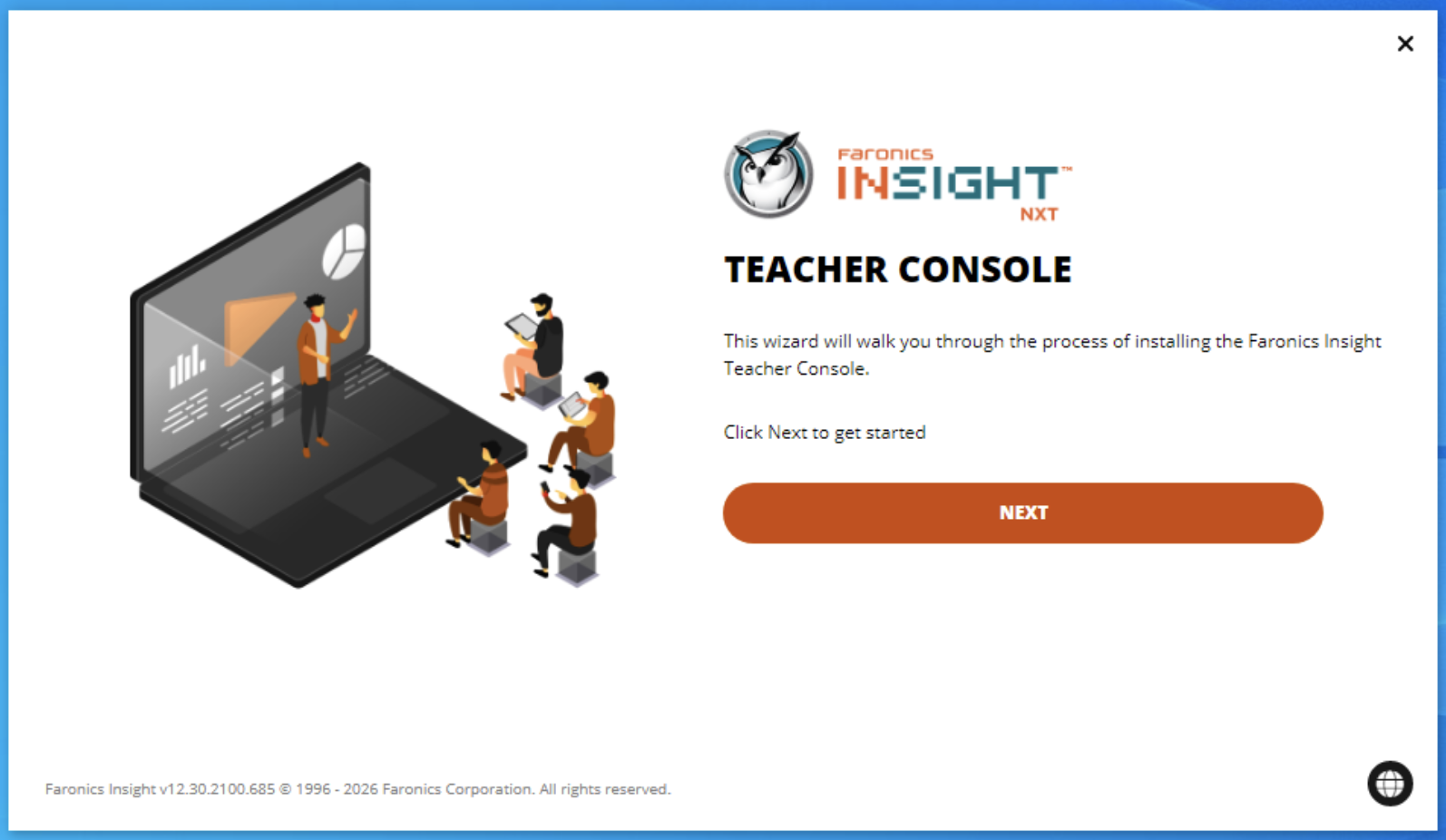 4. Review the terms of the license agreement. Check the box to accept then click *Next*.

 5. Next, the option to enter the default Class ID is shown. If your IT staff have provided a Class ID for you, enter this here. If you are responsible for assigning your own Class ID, please review the documentation [here ](/faronics-insight-docs/using-faronics-insight/the-insight-teacher-console/class-id)and select an appropriate Class ID. Click *Next*.

6. The next screen shows the option to enable *Private Mode*. If you have been provided an Access Token enter it here. If you are responsible for determining if this feature is to be used, refer [here](/faronics-insight-docs/installation-and-administration/installation/installation-options/private-mode) to select an appropriate Token. Once appropriate settings have been made, click *Next*.

5. Next, the option to enter the default Class ID is shown. If your IT staff have provided a Class ID for you, enter this here. If you are responsible for assigning your own Class ID, please review the documentation [here ](/faronics-insight-docs/using-faronics-insight/the-insight-teacher-console/class-id)and select an appropriate Class ID. Click *Next*.

6. The next screen shows the option to enable *Private Mode*. If you have been provided an Access Token enter it here. If you are responsible for determining if this feature is to be used, refer [here](/faronics-insight-docs/installation-and-administration/installation/installation-options/private-mode) to select an appropriate Token. Once appropriate settings have been made, click *Next*.


 to access the settings.
{% endhint %}
to access the settings.
{% endhint %}


 , or
2. To create new settings, select *Create New Settings* from the drop-down menu.
2. Click *Share Screen* from the left-hand menu.
3. Select *Full Screen* or *Windowed*.
* Full Screen – The Teacher's screen will be shown on the Student's screens. The Students will not be able to control their mice and keyboards during Share My Screen.
* Windowed – The Teacher's broadcasted screen will appear in a window on the Students' screens. The Students can then resize the window and work by following along with the Teacher. This way, the Students can follow along with the Teacher and use their computers during the Teacher's broadcast session.\
\
You can choose to *Keep Teacher Screen on Top of Other Windows*. This option prevents the Teacher screen window from hiding even when other applications are accessed.
4. Select *Allow Students to Close the Insight Window* – When enabled, the Student can close the Insight Window. Click on the system tray (or menu bar item) to restore Insight.
5. Select *Allow Students to Minimize the Insight Window* – When enabled, the Student can minimize Insight to the task bar (for Windows) or the dock (for Mac).
6. Lock Student keyboard and mouse when sharing Student screen – Option to automatically lock the Student keyboard and mouse when performing Share Screen, and automatically unlocking after the Share Screen is over.
7. Minimize Student screen after session ends – When enabled, the Student screen will be minimized after the session has ended.
8. Click *Save* or *Save and Apply*.

{% hint style="success" %}
The Share Screen setting has been successfully configured. See [Share My Screen](/faronics-insight-docs/using-faronics-insight/the-insight-teacher-console/sharing/share-my-screen) and [Share a Student's Screen](/faronics-insight-docs/using-faronics-insight/the-insight-teacher-console/sharing/share-a-students-screen) for examples on how to share Teacher's and Student's screens.
{% endhint %}
# Chat
Teachers can enable or disable chat functions including all *Chat*, *Inter-student Chat*, and *Student Replies (One-way Chat)*. When *Chat* is disabled, Students can still engage in conversation with the Teacher through asking questions.

1. Click *Chat* from the left-hand menu.
2. Click the switch to enable/disable the *Disable chat* option.
3. Click the switch to enable/disable the *Disable inter-student chat* option.
4. Click the switch to enable/disable the *Disable student replies (One-way chat)* option.
5. Click *Save* or *Save and Apply*.
# Lock Screen
This option allows Teachers to specify a message that will be shown on the Student computers, or upload an image that will be displayed in the background rather than the default blue background when the Student computer is locked. Teachers can specify the message and/or choose the image to be displayed.
## Configure the Lock Screen
To configure the Lock Screen setting, either edit existing settings or create new settings.

1. Click *Lock Screen* from the left-hand menu.
2. Select *Display Message on Locked Screen* and specify the message to be displayed on the Student computers when they are locked by typing a message or selecting from the drop-down list. The last 10 messages are saved so they can be quickly selected when locking screens, or
3. Select *Show image on locked screen* and choose the image to be displayed on the Student computers when they are locked.
4. Click *Save* or *Save and Apply*.
{% hint style="info" %}
If the option to *Display message on locked screen* or *Show image on locked screen* is not selected, the default lock screen message will display *Pay attention to the class.*
{% endhint %}
{% hint style="info" %}
To avoid confusion when locking Student computers, it is recommended to show a message or image when the screen is locked.
{% endhint %}
### Examples of the Student Screen being Locked
#### Teacher View
When viewing the Student computers in thumbnail view, the locked Student computers are displayed with the selected message or image.

#### Student View
If the option to *Display message on locked screen* is selected, the Student computer will display the customized message when their computer is locked. The example below displays the default lock screen message.

If the option to *Show image on locked screen* is selected, the Student computer will display the selected lock screen image when their computer is locked. The example below shows an uploaded image with a padlock.

# Banned Word Alert
Teachers can specify a list of banned words that will trigger an alert if typed by a Student, as well as enable collecting screenshots of Student computers when a banned word is detected.

1. Click *Banned Word Alert* from the left-hand menu.
2. Select *Notify me if a student types any of the following words.*
3. Specify the list of banned words separated by a comma in the box provided.
4. Select *Capture a screenshot when Student types a banned word* if preferred.
5. Click *Save* or *Save and Apply*.
# File Transfer Location
Specify the default location for saving files on Student computers. This can be on the hard drive or a network drive.

1. Click *File Transfer Location* from the left-hand menu.
2. Specify the path where the downloaded files are to be saved on the Student computers.
3. Specify the path where the submitted files are to be saved on the Teacher computers.
\
Select *Save Files in Separate Folders for each Student* if preferred.
, or
2. To create new settings, select *Create New Settings* from the drop-down menu.
2. Click *Share Screen* from the left-hand menu.
3. Select *Full Screen* or *Windowed*.
* Full Screen – The Teacher's screen will be shown on the Student's screens. The Students will not be able to control their mice and keyboards during Share My Screen.
* Windowed – The Teacher's broadcasted screen will appear in a window on the Students' screens. The Students can then resize the window and work by following along with the Teacher. This way, the Students can follow along with the Teacher and use their computers during the Teacher's broadcast session.\
\
You can choose to *Keep Teacher Screen on Top of Other Windows*. This option prevents the Teacher screen window from hiding even when other applications are accessed.
4. Select *Allow Students to Close the Insight Window* – When enabled, the Student can close the Insight Window. Click on the system tray (or menu bar item) to restore Insight.
5. Select *Allow Students to Minimize the Insight Window* – When enabled, the Student can minimize Insight to the task bar (for Windows) or the dock (for Mac).
6. Lock Student keyboard and mouse when sharing Student screen – Option to automatically lock the Student keyboard and mouse when performing Share Screen, and automatically unlocking after the Share Screen is over.
7. Minimize Student screen after session ends – When enabled, the Student screen will be minimized after the session has ended.
8. Click *Save* or *Save and Apply*.

{% hint style="success" %}
The Share Screen setting has been successfully configured. See [Share My Screen](/faronics-insight-docs/using-faronics-insight/the-insight-teacher-console/sharing/share-my-screen) and [Share a Student's Screen](/faronics-insight-docs/using-faronics-insight/the-insight-teacher-console/sharing/share-a-students-screen) for examples on how to share Teacher's and Student's screens.
{% endhint %}
# Chat
Teachers can enable or disable chat functions including all *Chat*, *Inter-student Chat*, and *Student Replies (One-way Chat)*. When *Chat* is disabled, Students can still engage in conversation with the Teacher through asking questions.

1. Click *Chat* from the left-hand menu.
2. Click the switch to enable/disable the *Disable chat* option.
3. Click the switch to enable/disable the *Disable inter-student chat* option.
4. Click the switch to enable/disable the *Disable student replies (One-way chat)* option.
5. Click *Save* or *Save and Apply*.
# Lock Screen
This option allows Teachers to specify a message that will be shown on the Student computers, or upload an image that will be displayed in the background rather than the default blue background when the Student computer is locked. Teachers can specify the message and/or choose the image to be displayed.
## Configure the Lock Screen
To configure the Lock Screen setting, either edit existing settings or create new settings.

1. Click *Lock Screen* from the left-hand menu.
2. Select *Display Message on Locked Screen* and specify the message to be displayed on the Student computers when they are locked by typing a message or selecting from the drop-down list. The last 10 messages are saved so they can be quickly selected when locking screens, or
3. Select *Show image on locked screen* and choose the image to be displayed on the Student computers when they are locked.
4. Click *Save* or *Save and Apply*.
{% hint style="info" %}
If the option to *Display message on locked screen* or *Show image on locked screen* is not selected, the default lock screen message will display *Pay attention to the class.*
{% endhint %}
{% hint style="info" %}
To avoid confusion when locking Student computers, it is recommended to show a message or image when the screen is locked.
{% endhint %}
### Examples of the Student Screen being Locked
#### Teacher View
When viewing the Student computers in thumbnail view, the locked Student computers are displayed with the selected message or image.

#### Student View
If the option to *Display message on locked screen* is selected, the Student computer will display the customized message when their computer is locked. The example below displays the default lock screen message.

If the option to *Show image on locked screen* is selected, the Student computer will display the selected lock screen image when their computer is locked. The example below shows an uploaded image with a padlock.

# Banned Word Alert
Teachers can specify a list of banned words that will trigger an alert if typed by a Student, as well as enable collecting screenshots of Student computers when a banned word is detected.

1. Click *Banned Word Alert* from the left-hand menu.
2. Select *Notify me if a student types any of the following words.*
3. Specify the list of banned words separated by a comma in the box provided.
4. Select *Capture a screenshot when Student types a banned word* if preferred.
5. Click *Save* or *Save and Apply*.
# File Transfer Location
Specify the default location for saving files on Student computers. This can be on the hard drive or a network drive.

1. Click *File Transfer Location* from the left-hand menu.
2. Specify the path where the downloaded files are to be saved on the Student computers.
3. Specify the path where the submitted files are to be saved on the Teacher computers.
\
Select *Save Files in Separate Folders for each Student* if preferred.


 , or stop sharing the Teacher screen by clicking
  .

# Share a Student's Screen
This option shares a particular Student's screen with the entire class. This can help create a more interactive atmosphere among Students by showcasing creative solutions to a problem, or highlighting a Student's achievements and results in real-time, or demonstrating to the class what specific Students are doing on a class project.

1. Select the Student computer to share with the class.
2. Click *Share*.
3. Click *Start* next to the *Share a Student's Screen* option.
4. Click *Confirm*.
.

# Share a Student's Screen
This option shares a particular Student's screen with the entire class. This can help create a more interactive atmosphere among Students by showcasing creative solutions to a problem, or highlighting a Student's achievements and results in real-time, or demonstrating to the class what specific Students are doing on a class project.

1. Select the Student computer to share with the class.
2. Click *Share*.
3. Click *Start* next to the *Share a Student's Screen* option.
4. Click *Confirm*.