# (delete) Copy of 生徒コンソールを操作する

## Windows

生徒のコンピュータが読み込みを行う際、Student Insightのアプリケーションは自動的にバックグラウンドで動作します。

Insightの読み込み方法：

<div align="left"><figure><img src="/files/hwr60ZdfPKIFKZr65qDX" alt=""><figcaption></figcaption></figure></div>

1. 画面右下にあるステータスバーの拡張アイコンをクリックします。
2. Insightアイコン <img src="/files/PjCUgCljmrycG0uoVOpz" alt="" data-size="line"> をクリックしてInsightアプリケーションを前面に表示させます。
3. 参加したいクラスIDを入力します (この例では1)。<br>

   <figure><img src="/files/2ufYeFwC5KgckW6hDs1L" alt=""><figcaption></figcaption></figure>
4. ［クラスに移動］をクリックします。

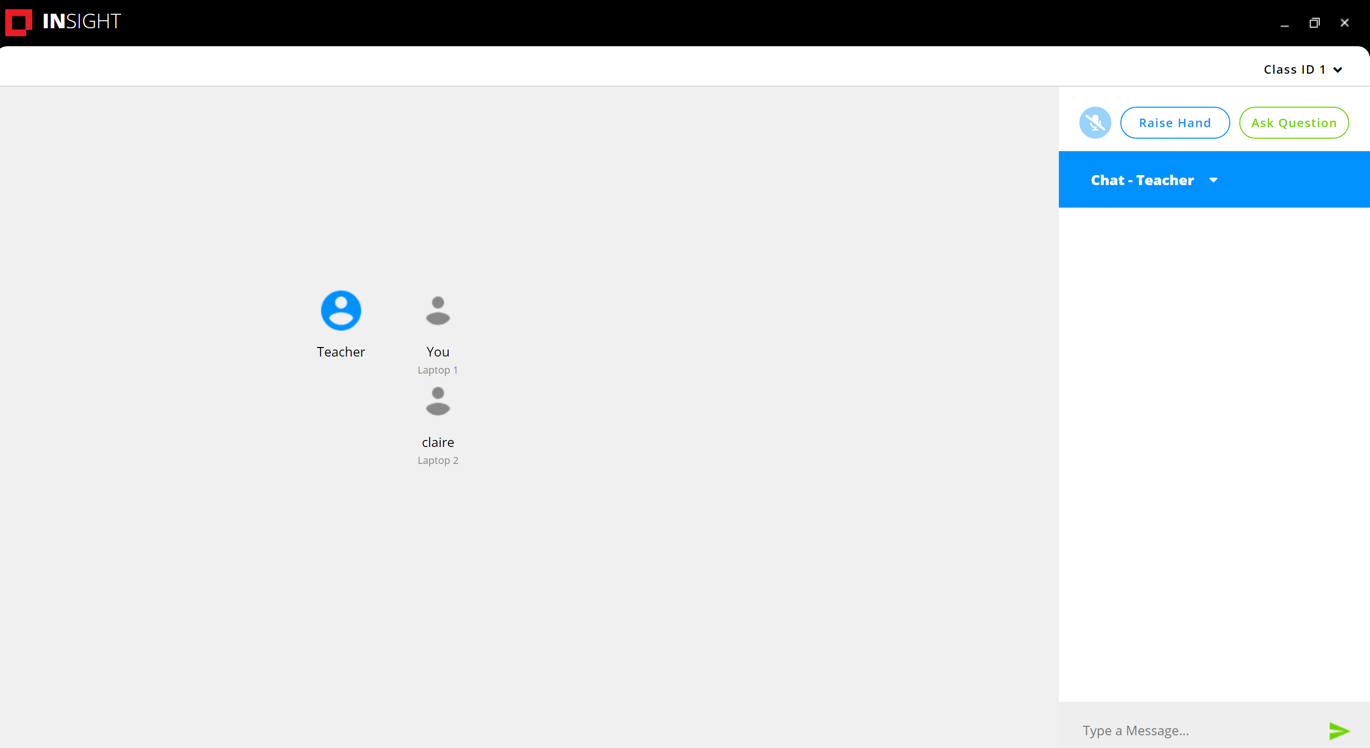
{% hint style="success" %}
教師と他の生徒が表示されているクラス画面が表示されるようになります。
{% endhint %}

<figure><img src="/files/yTExT1VHk5vQlXhKAsoQ" alt=""><figcaption></figcaption></figure>

## Mac

Macコンピュータでは、Faronics Insight Studentアイコンがメニューバー上で小さなアイコンとして表示されます。

<div align="left"><figure><img src="/files/GpEu8tNMiVRgLwytfM3h" alt=""><figcaption></figcaption></figure></div>

Insight Studentアイコンをクリックして参加したいクラスIDを入力します。プロンプト画面が表示されたら許可を有効にします。


---

# Agent Instructions: Querying This Documentation

If you need additional information that is not directly available in this page, you can query the documentation dynamically by asking a question.

Perform an HTTP GET request on the current page URL with the `ask` query parameter:

```
GET https://docs.faronics.com/faronics-insight-docs/japanese/faronics-insightwosuru/insight-studentapurikshon/delete-copy-of-konsruwosuru.md?ask=<question>
```

The question should be specific, self-contained, and written in natural language.
The response will contain a direct answer to the question and relevant excerpts and sources from the documentation.

Use this mechanism when the answer is not explicitly present in the current page, you need clarification or additional context, or you want to retrieve related documentation sections.